Building an AI-powered meeting evaluator with RTMS and InWorld Runtime
The combination of RTMS and Zoom Apps creates powerful opportunities to build solutions that can deliver real value to you and your organization. One such example is a realtime meeting evaluation that provides feedback during calls. Cale Shapera, Staff Product Engineer, from Inworld AI built a Zoom App that demonstrates this:
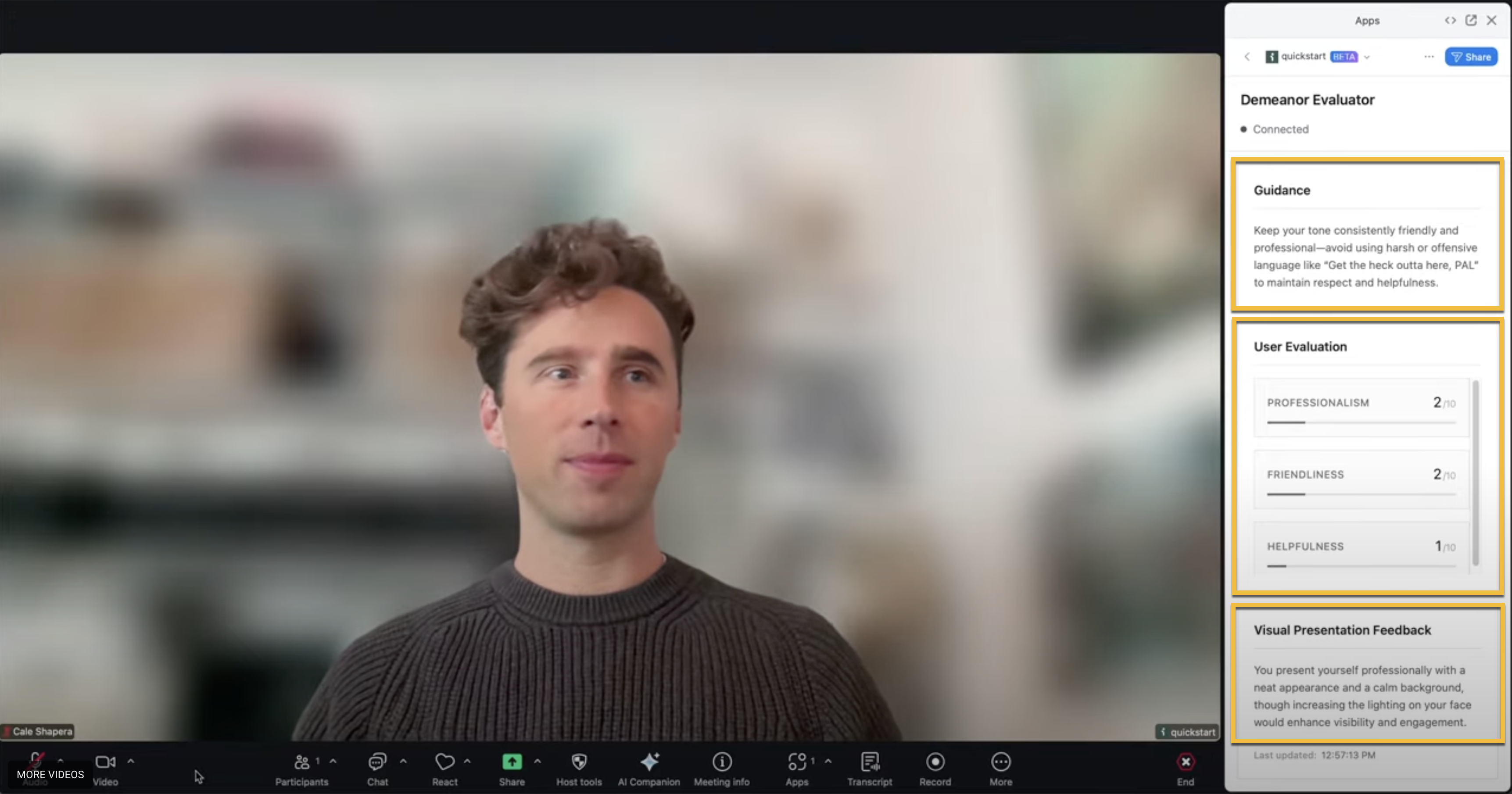
It evaluates meeting participant performance in realtime, analyzing both what participants say and how they appear on camera using Realtime Media Streams (RTMS).
See the Inworld AI Zoom RTMS integration in action.
Before RTMS, traditional meeting evaluation happened after the meeting ended. Participants reviewed recordings, analyzed audio, and got feedback much later, when it was too late to adjust their behavior during the call.
This example demonstrates how you can build realtime evaluation that:
- Analyzes what participants are saying (audio) for professionalism and tone
- Evaluates how participants appear on camera (video) for framing, lighting, and presence
- Provides feedback instantly within the Zoom client
- Displays results without disrupting the meeting flow
RTMS provides realtime access to meeting media streams (audio, video, and more) without requiring bots or virtual clients. Combined with an AI runtime for processing, you can build sophisticated evaluation systems that work in realtime.
Architecture overview
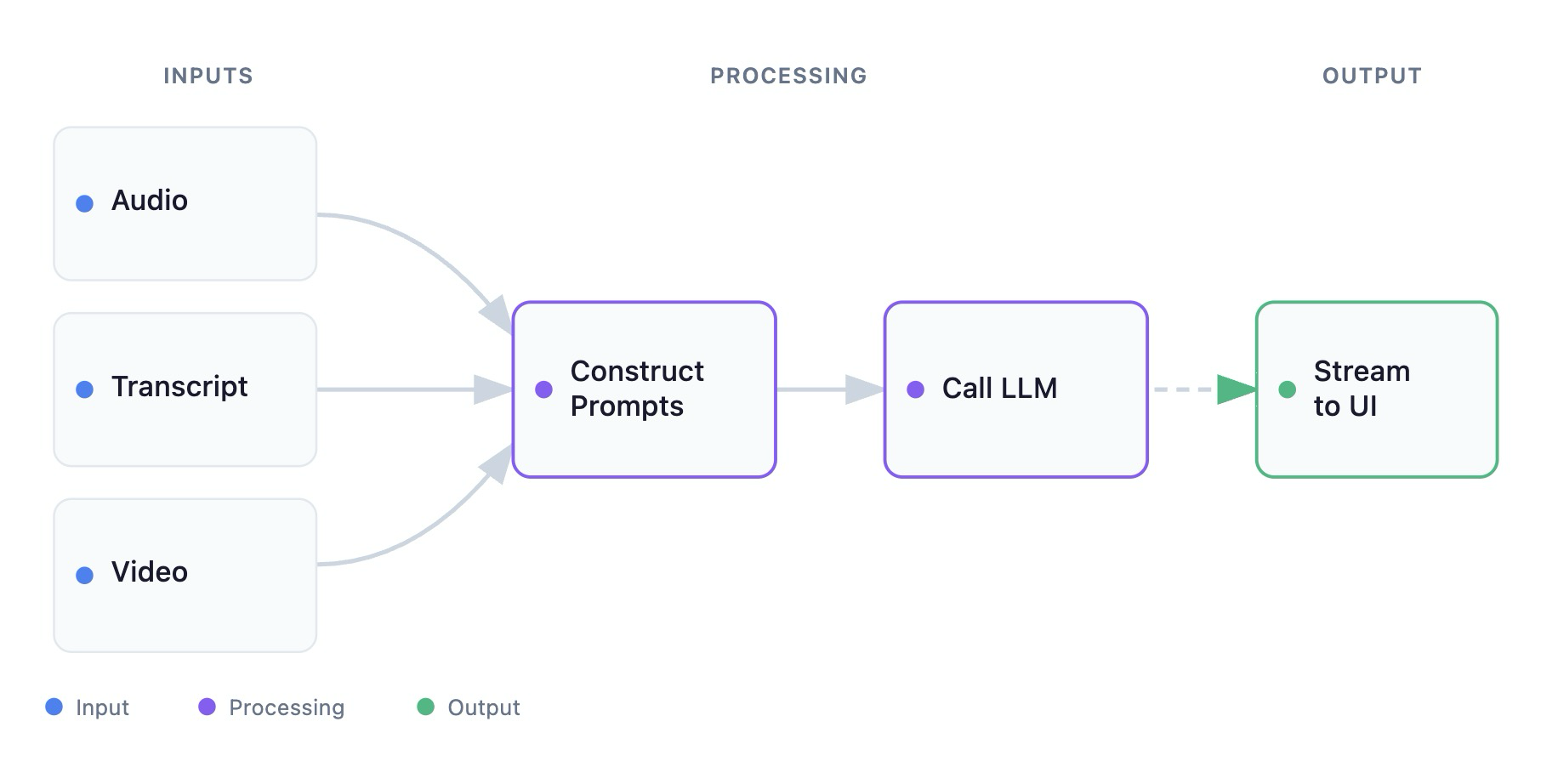
The app uses RTMS to stream meeting media to a backend Express server, which processes it through AI workflows. Results appear in a Zoom Apps side panel during the meeting.
In this example, the team used Inworld Runtime for AI orchestration, which turns complex AI pipelines into simple, composable graphs you can build, run, and deploy in minutes. You can use any AI model that supports realtime processing. The key is having configurable workflows that let you adjust evaluation criteria, swap models, or run experiments without redeploying your application.
How it works
RTMS integration
The app uses native WebSockets (as described in the RTMS WebSockets quickstart) to receive two types of media streams:
- Audio: Realtime meeting audio that captures what participants are saying
- Video: Live video frames that show how participants appear on camera
The backend is an Express app with a WebSocket handler that manages the RTMS connection lifecycle. When RTMS starts, the handler establishes signaling and media WebSocket connections, receives audio and video data, and routes it to the appropriate AI processing workflows. See the complete implementation in the GitHub repository.
AI processing
The AI processing uses three main workflows:
- Guidance workflow: Processes audio to provide realtime coaching feedback using prompt templates and LLM analysis (Groq's gpt-oss-120b in this example)
- Evaluation workflow: Assesses audio for professionalism, tone, and adherence to guidelines, focusing on scoring and metrics
- Visual evaluation workflow: Analyzes video frames captured at regular intervals, evaluating camera presence, framing, lighting, and professional appearance
Zoom Apps frontend
The frontend uses the Zoom Apps SDK to display results in a side panel directly within the Zoom meeting interface. This makes realtime feedback practical—instead of requiring participants to check a separate dashboard, the feedback appears where they need it most, during the meeting itself. The frontend connects to the backend via WebSocket or HTTP endpoints to receive evaluation results, maintaining state throughout the meeting to show evaluation history and metrics. The Zoom Apps SDK handles the integration complexity, allowing you to focus on building the UI and functionality.
Real-world use cases
You can use this pattern to build:
- Realtime coaching: Provide immediate feedback to help participants improve during calls
- Performance metrics: Track professionalism, tone, and camera presence over time
- Quality assurance: Automatically flag meetings that need review based on evaluation criteria
- Sentiment analysis: Analyze customer sentiment during support or sales calls
- Compliance monitoring: Detect compliance issues in realtime
- Custom evaluation: Create evaluation criteria for different industries or use cases
How to build it
Here's how to build a similar realtime evaluation app:
-
RTMS setup
Set up webhooks for
meeting.rtms_startedandmeeting.rtms_stopped(see Add RTMS features to your app). Configure scopesmeeting:read:meeting_transcriptsandmeeting:read:video_streamsin your Zoom App settings. Build an Express server with WebSocket handlers following the RTMS WebSockets quickstart. -
AI processing
Set up Inworld Runtime by downloading the Zoom RTMS template. Clone the repository, configure your environment variables, and run the application. You can run experiments (e.g., trialling different TTS voices or LLM models) and view detailed usage in the Inworld platform. Enable observability to track execution, performance metrics, and error rates.
-
Zoom Apps frontend
Build a web-based interface using the Zoom Apps SDK that displays evaluation feedback in a side panel. Connect to your backend via WebSocket or HTTP endpoints to receive realtime results and maintain state throughout the meeting.
-
Testing and optimization
Test with real meetings to verify latency, accuracy, and user experience. Implement caching strategies to reduce redundant AI processing and optimize costs. Tune evaluation criteria based on feedback.
Ready to build your own implementation?
This example shows what's possible when you combine RTMS with AI frameworks. RTMS gives you realtime access to meeting media without the complexity of bots or virtual clients. Combine it with an AI framework that supports realtime processing, and you can build production-grade applications.
The complete implementation example is available in the Inworld AI Zoom RTMS repository on GitHub, and you can follow along with this video walkthrough.
- You can reach the Inworld team at support@inworld.ai for technical and implementation support.
- Looking for a starting point to build agent-assisted apps on Zoom? Check out the agent-assisted Zoom Apps sample by my amazing colleague, Chun Siong.
- If you're new to RTMS, start with the Getting started with RTMS guide and Add RTMS features to your app documentation. For the WebSocket implementation details, see the RTMS WebSockets quickstart. And to learn about building Zoom Apps, check out the Zoom Apps documentation.