Zoom OAuth 2.0 Proof Key for Code Exchange (PKCE) Flow
Introduction
Zoom supports Proof of Key Code Exchange (PKCE) industry - standard protocol for authorization when requesting user tokens. This offers better security by enabling clients to use a code challenge and code exchange as part of the initial user authorization request. See rfc7636 for details.
This guide will walk you through the manual generation of the PKCE OAuth Code_verifier and code_challenge. It will also teach you how to generate these codes programmatically. Finally, it will demonstrate how to use the Zoom OAuth 2.0 PKCE Flow in Postman.
What is PKCE?
PKCE is an extension to the OAuth 2 spec. Its design aims to add an additional layer of security that verifies that the authentication and token exchange requests come from the same client. This is achieved through the use of the code_challenge and code_verifier parameters, sent by the third-party application during the OAuth process.
- The
code_verifierparameter's value uses the SHA 256 Cryptographic Hash Algorithm. SHA 256 creates a unique "signature" for a text or file of any size, - The
code_challengeBase64-encodes the value generated from the code_verifer step.
Note:
- Regardless of the input file or text, the generated value is always the same length
- Guaranteed to be always produce the same result for the same input
- One way (that is, you can't reverse engineer it to reveal the original input)
code_challengevalue should be equivalent to thecode_verifierparameter's value when using the "plain" code challenge mode, or a cryptographic hash of thecode_verifierparameters' value, though the use of the "plain" code challenge method is largely discouraged.
Generate the code_verifier and code_challenge:
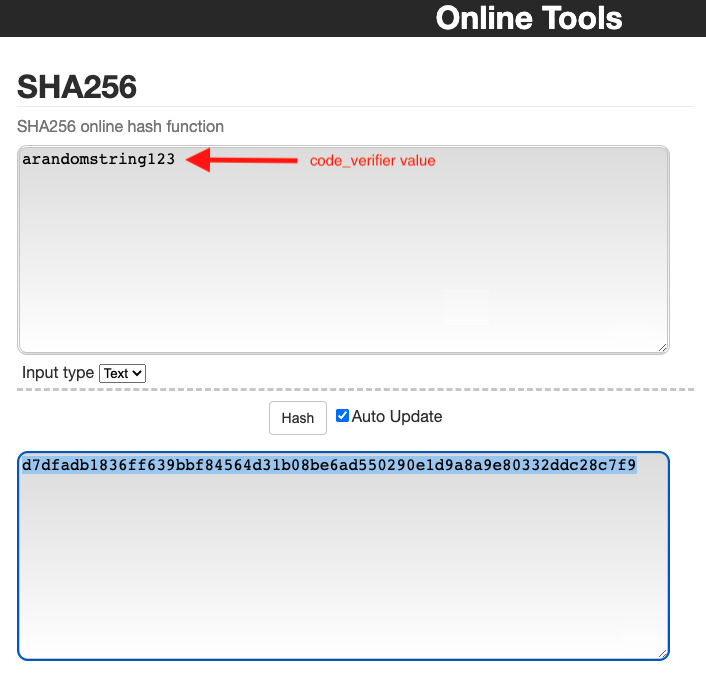
You can manually generate the code_verifier by entering a random string into the SHA256 online tool on Github.
SHA256 Tool Screenshot:
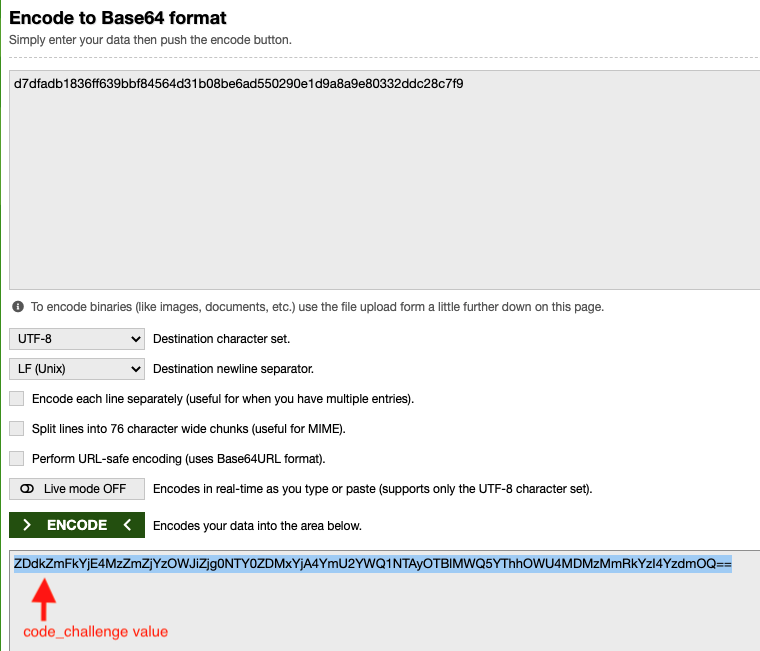
Then, manually encode the encrypted value with the Base64 online tool:
Base64encode Tool Screenshot:
Programmatically generate the code_verifier and code_challenge
Alternatively, you can programmatically generate the code_verifier and code_challenge with the following script:
mkdir crypto-gen
cd crypto-gen
npm init -y
const crypto = require("crypto");
const btoa = require("btoa");
function base64URLEncode(str) {
    return str
        .toString("base64")
        .replace(/\+/g, "-")
        .replace(/\//g, "_")
        .replace(/=/g, "");
}
function sha256_ASCII(buffer) {
    return crypto
        .createHash("sha256")
        .update(buffer)
        .digest("base64")
        .toString("ascii");
}
const code_Verifier = base64URLEncode(crypto.randomBytes(32));
const code_ChallengeUrlSafeEncode = base64URLEncode(
    sha256_ASCII(code_Verifier),
);
console.log("code_verifier: " + code_Verifier);
// Append trailing "=" to the end code_challenge_url_safe_encode
console.log(
    "URL safe encode code_challenge : " + code_ChallengeUrlSafeEncode + "=",
);
PKCE Flow Overview
- During the initial step (
https://zoom.us/oauth/authorize) of the OAuth procedure, thecode_challengeparameter is provided by the third-party client to the OAuth provider. - After the user has manually authorized the application, the OAuth provider should then respond with an authorization code, which must be returned to the OAuth provider along with the
code_verifierparameter, by the third-party client, in exchange for an access token. - If the
code_verifierparameter does not match thecode_challengeprovided by the client in the initial authorization request, this may indicate an attempted code injection attack, and so the OAuth process should be abandoned by the provider and an error returned to the third-party client. - If Zoom verifies that the
code_challengeand thecode_verifiermatch, the token endpoint (https://zoom.us/oauth/token) continues processing.
Zoom OAuth 2.0 PKCE Flow: In Postman
Step 1: Getting an Access Token
-
Direct the user to
https://zoom.us/oauth/authorizewith the following query parameters: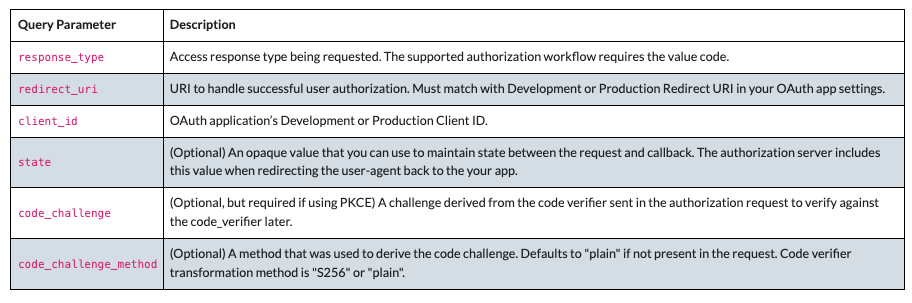
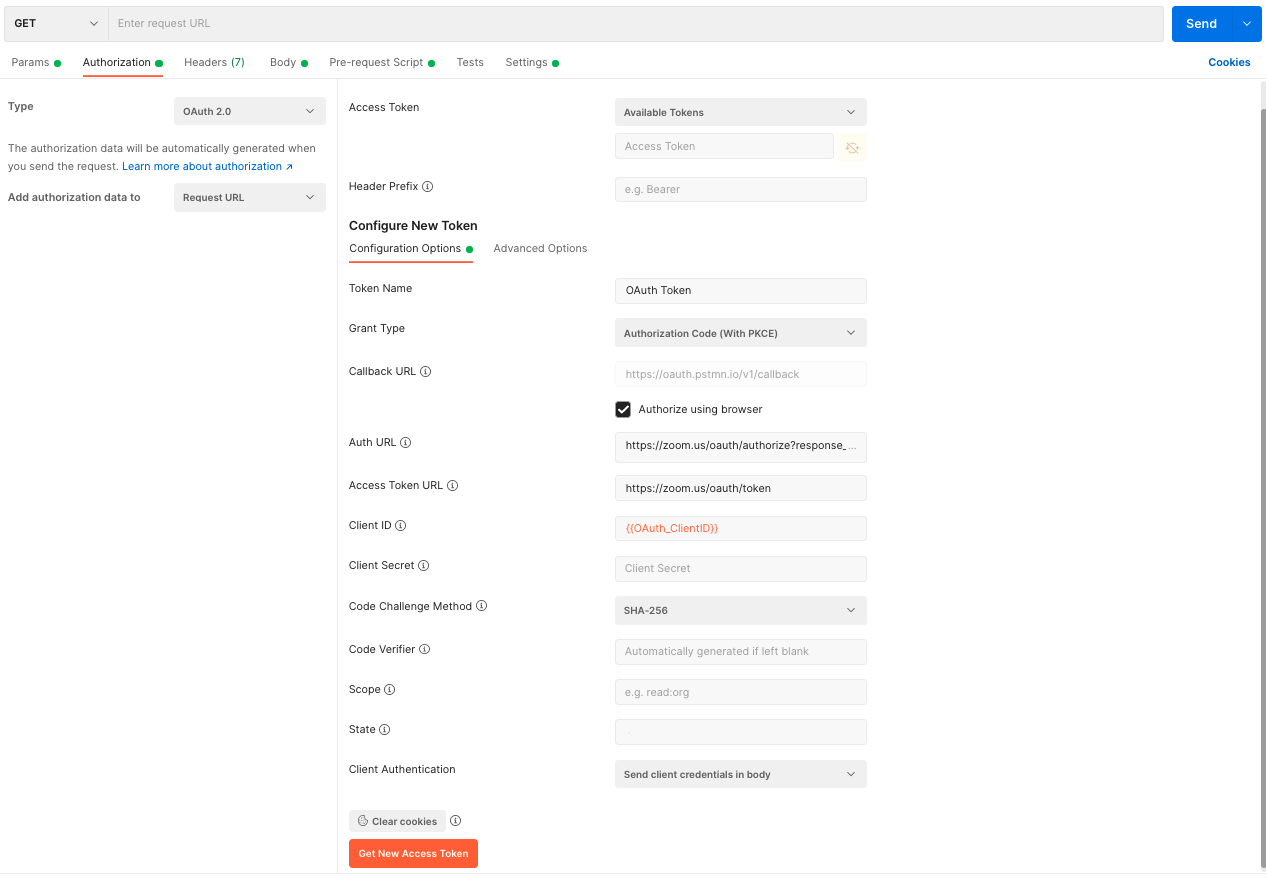
Postman Authorization Tab Configuration:
-
Under the Authorization tab of any request, select
OAuth 2.0.Select Get New Access Token. -
From there, select a Grant Type of Authorization Code (With PKCE), and click Authorize using the browser checkbox.
-
In the Auth URL field, enter Zoom Authorization endpoint with response_type and code_challenge params values included:
https://zoom.us/oauth/authorize?response_type=code&code_challenge= {{A challenge derived from the code verifier}} -
In the Access Token URL field, enter the access token endpoint
https://zoom.us/oauth/token -
In the clientID field, enter Zoom Marketplace OAuth app clientID.
-
In the Code Challenge Method field, select SHA-256 and click Get New Access token.
-
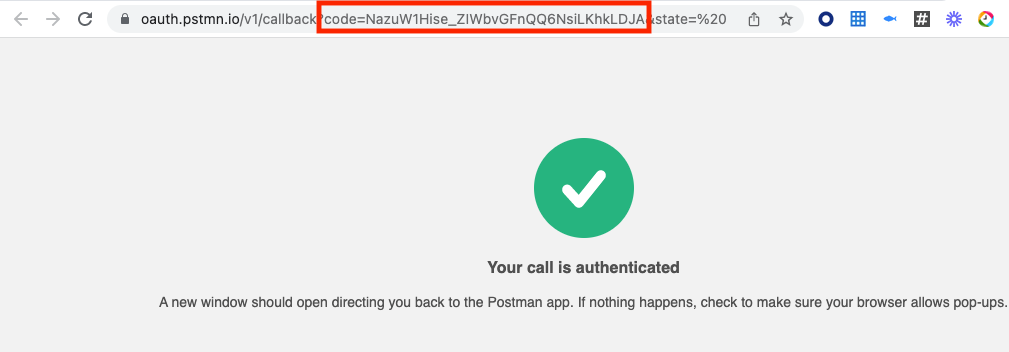
Postman will open a browser tab that redirects to the endpoint entered for the Zoom Marketplace redirect URL. Appended to the end of the Redirect URL, you will find the Authorization Code, which must be returned to the OAuth provider (Zoom) to get Access Token. This example leverages Postman's redirect endpoint (https://oauth.pstmn.io/v1/callback):
Postman Authorization Tab:
Here is a screenshot of what the populated Authorization tab looks like:
Step 2: Request Access Token:
-
Create Post to https://zoom.us/oauth/token with the following headers and query parameters:
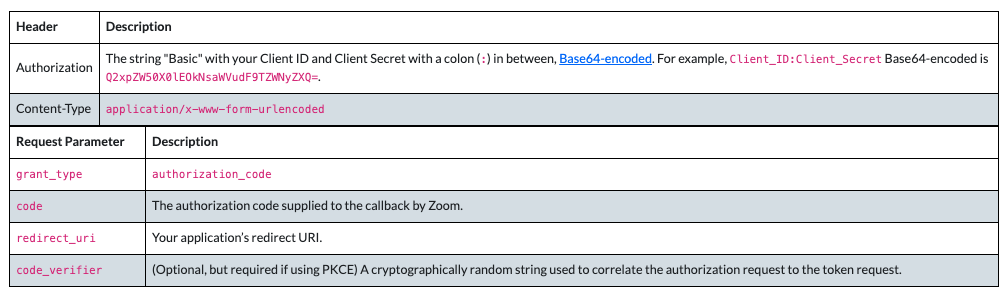
Postman Params Tab Configuration :
-
On the Postman Params Tab, set
code,grant_type,redirect_url, andcode_veriferparam values: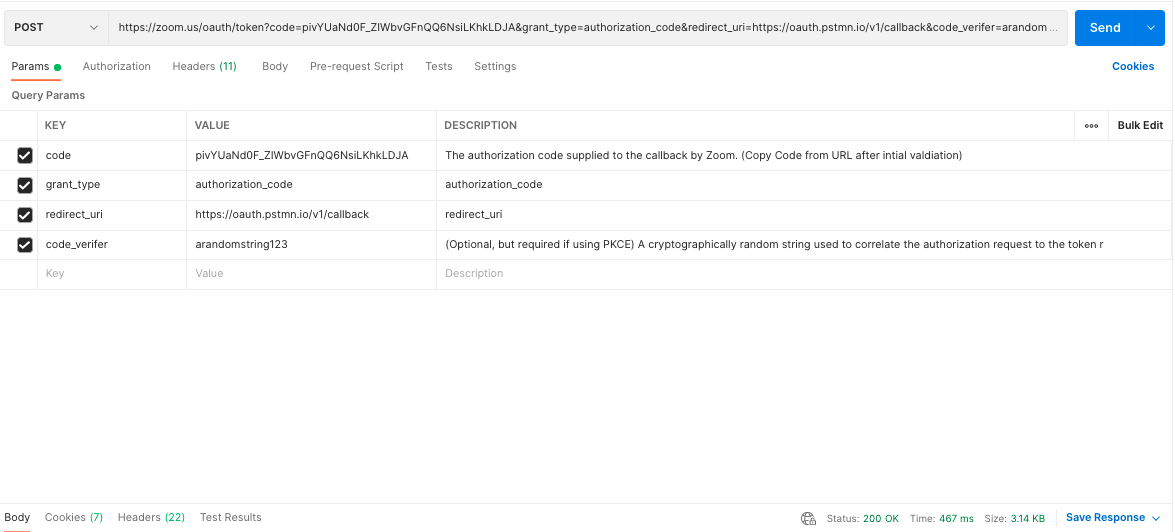
-
On the Postman Headers Tab , set
Content-TypeandAuthorizationheaders, then click Send: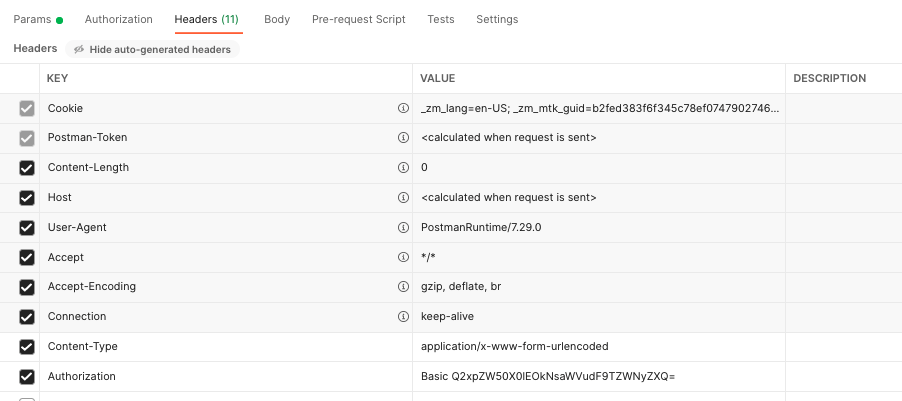
For reference, here is a video demonstrating the PKCE Flow:
(Coming Soon)
Resources
-
Github Sample Apps:
Conclusion
To access more knowledge about this from our developer community and Developer Relations team, be sure to take a look at the dedicated thread on the Zoom Developer Forum. We'd love for you to check it out, and look forward to your feedback.
If you enjoyed this article, feel free to check out some others articles and support documentation like:
For any questions or assistance with any of these topics, please use our Developer Forum, or contact Developer Support. For details about Developer Platform updates, including APIs and SDKs, please visit the changelog regularly.
Happy coding!