

Introduction
At Zoom, we strive to provide the best video conferencing experience possible. Software libraries such as Zoom Meeting SDK allow the creation of third party applications powered by Zoom's world-class video technology platform. With Zoom Meeting SDK, developers can build self-branded apps with nearly all of the features of the desktop client Zoom experience.
In this guide we will upgrade your macOS app using the Meeting SDK. The following steps are covered:
- Prerequisites
- Downloading the SDK
- Backing up Xcode configuration (Optional)
- Copying new SDK files
- Updating Project Settings
- Code Signing
- Creating a Disk Image
Prerequisites
Before updating your macOS Meeting SDK app, it is helpful to know which version to upgrade to. The Zoom Software Quarterly Lifecycle Policy contains the minimum requirements for Meeting SDK (Native) apps, and the changelog should cover any breaking changes.
For the sake of project stability, ensure you have backed up your files and committed changes to your source control.
Downloading the SDK
Log into the Zoom App Marketplace with your Zoom account.
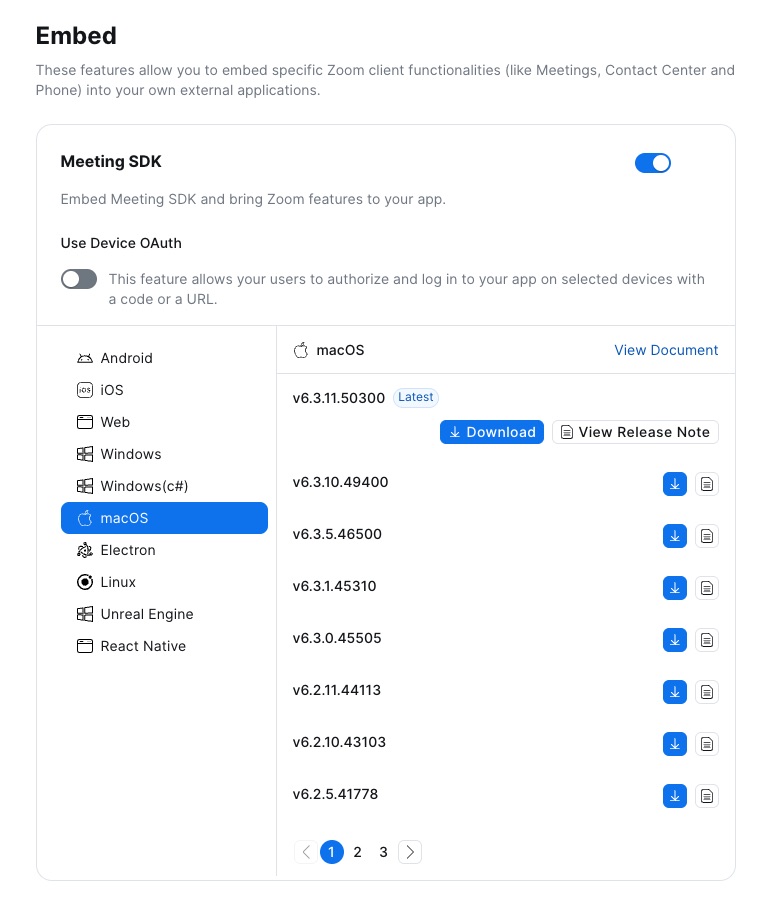
If you do not yet have an existing Meeting SDK app, create a new one by clicking on the Develop button and selecting Build App from the dropdown menu. Select General App and fill out the following Basic Information, Access, and Surface screens. On the Embed screen, enable Meeting SDK to embed Zoom features to your app. The list of platforms with downloadable Meeting SDK bundles should now be available, allowing you to choose macOS with the corresponding version you would like to download.
If you have an existing app, click on Manage on the upper-right next to your username initials. Then navigate past the Basic Information, Access, and Surface screens to arrive the Embed screen to download the macOS Meeting SDK.
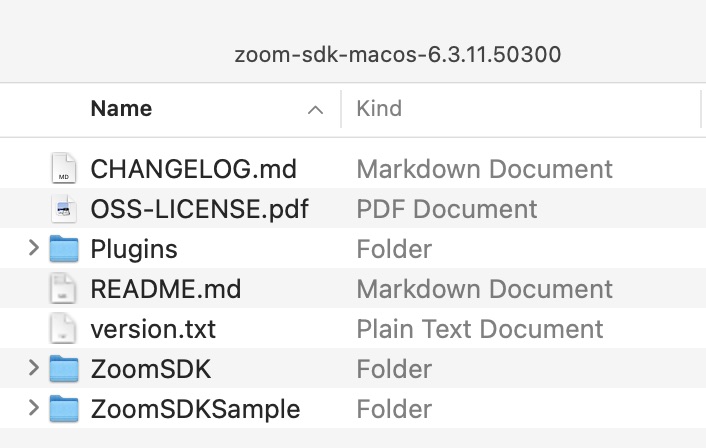
If you unzip the contents, the following files and folders should be present.
Backing up Xcode configuration (Optional)
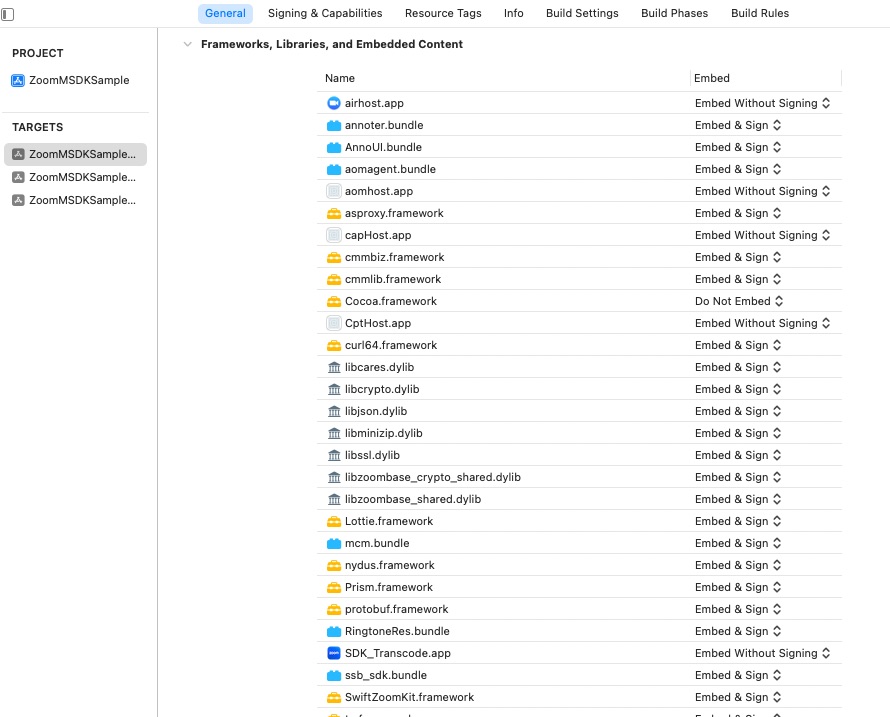
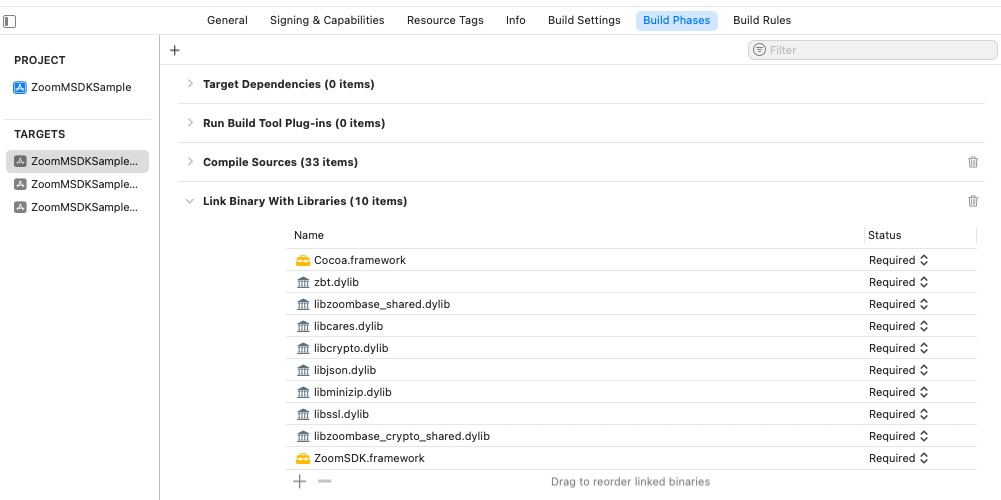
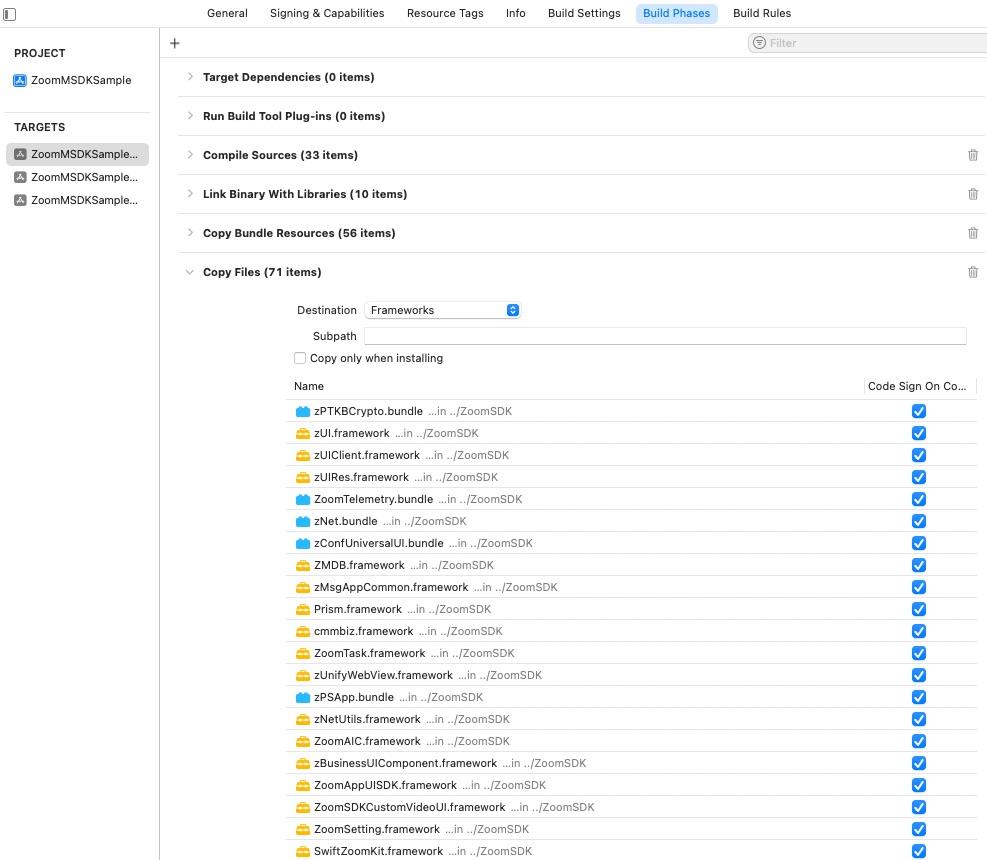
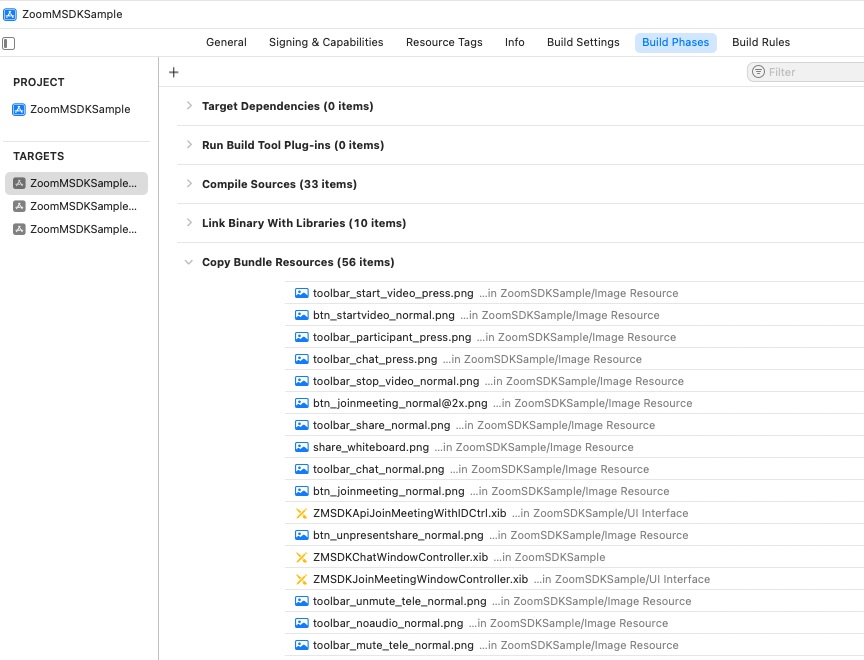
This upgrade will alter the Zoom Meeting SDK files in your Frameworks section. These files are usually not checked into your source code repository. Therefore, it may be helpful to take notes on your configurations via screenshots before the update. Relevant sections:
Target > General > Frameworks, Libraries, and Embedded Content
Target > Build Phases > Link Binary with Libraries
Target > Build Phases > Copy Files
Target > Build Phases > Copy Bundle Resources
Open the Frameworks folder in the Project Navigator. Command-click on the ZoomSDK framework and click on Show in Finder. This folder should be where the relevant Meeting SDK reside. It may also be useful to note down which exact files are in this framework version, either via screenshot or by the terminal (ls . | sort).
Copying new SDK files
In another Finder window, navigate to the newly-downloaded Meeting SDK framework from above and navigate to the ZoomSDK/ directory within the framework. Select all of the files, copy them, and paste them into the older Frameworks folder revealed by the previous step. (Option-drag to copy rather than moving them in Finder.)
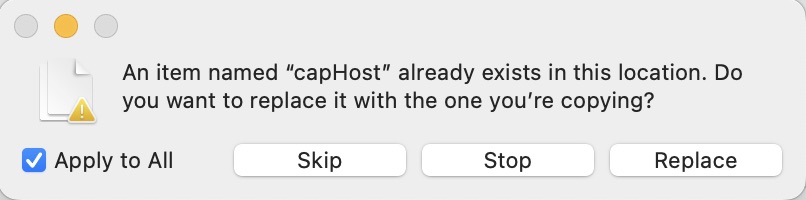
Alternatively, you can either replace the ZoomSDK directory directly (select Replace in the prompt).
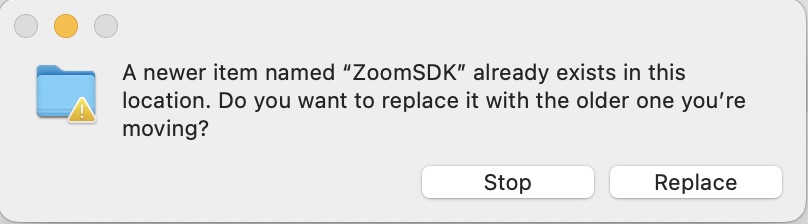
Note: If your project only has Zoom Meeting SDK files under Frameworks in your Xcode project, then you can simply delete all of the ZoomSDK files under that group within Xcode (select the option Move to Trash), and replace them with their newer counterparts from the updated versions, also in Xcode.
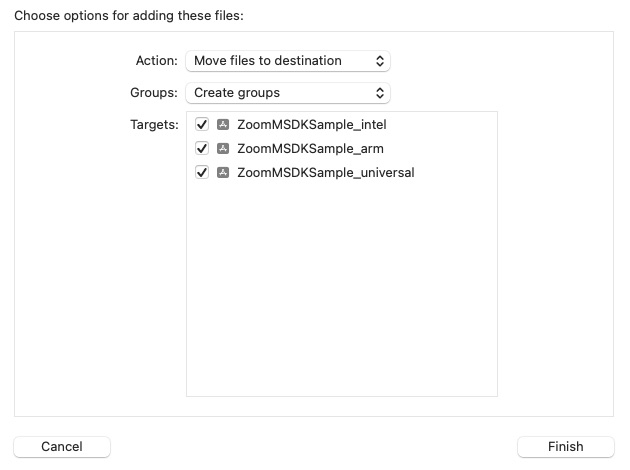
Try building and running the project. Fix any compilation errors caused by SDK interface changes.
Updating project settings
If there are any build errors caused by missing files, re-add (or add, if the update contains new files) accordingly. The following Target sections/build phases should contain files with the following file extensions-
Target > General > Frameworks, Libraries, and Embedded Content
- .app
- .bundle
- .framework
- .dylib
Target > Build Phases > Link Binary with Libraries
- .framework
- .dylib
Target > Build Phases > Copy Files
- .app
- .bundle
- .framework
- .dylib
Target > Build Phases > Copy Bundle Resources
- .app
- .bundle
Ensure they are configured as Embed & Sign as necessary. With these changes, your project should now build and run successfully.
Code signing
The ZoomSDK files must be signed for building and distribution.
Signing ZoomSDK files for building
Use the following sample script with the following steps to sign the files for building the project:
-
The
YOUR_SIGNING_CERTIFICATE_IDmust be replaced with the name of your signing certificate in Keychain Access, found at Project Settings > Target > Signing & Capabilities.The Developer Account Admin can generate a Signing Certificate in the Certificates, Identifiers & Profiles section of your Apple Developer Account.
-
Name the script
codesign-release-macsdk.shand place it in the root directory of your project, at the same level asZoomSDK/. -
Run the script in Terminal with
bash codesign-release-macsdk.sh.for dylib in "ZoomSDK/"*.dylib; do codesign --remove-signature "$dylib"; codesign --force --verify --timestamp --verbose --options=runtime --sign "YOUR_SIGNING_CERTIFICATE_ID" "$dylib"; done for framework in "ZoomSDK/"*.framework; do codesign --remove-signature "$framework"; codesign --force --verify --timestamp --verbose --options=runtime --sign "YOUR_SIGNING_CERTIFICATE_ID" "$framework"; done for bundle in "ZoomSDK/"*.bundle; do codesign --remove-signature "$bundle"; codesign --force --verify --timestamp --verbose --options=runtime --sign "YOUR_SIGNING_CERTIFICATE_ID" "$bundle"; done for app in "ZoomSDK/"*.app; do codesign --remove-signature "$app"; codesign --force --verify --timestamp --verbose --options=runtime --sign "YOUR_SIGNING_CERTIFICATE_ID" "$app"; for dylib in "${app}/Contents/Frameworks/"*.dylib; do codesign --remove-signature "$dylib"; codesign --force --verify --timestamp --verbose --options=runtime --sign "YOUR_SIGNING_CERTIFICATE_ID" "$dylib"; done for framework in "${app}/Contents/Frameworks/"*.framework; do codesign --remove-signature "$framework"; codesign --force --verify --timestamp --verbose --deep --options=runtime --sign "YOUR_SIGNING_CERTIFICATE_ID" "$framework"; done done
Signing ZoomSDK files for distribution
The SDK files also need to be signed when the project is archived for distribution.
First, ensure you have the following entitlement files in the root directory of your project:
-
general.entitlements: Apple Events, Audio Input, and Camera booleans should be set to
YES.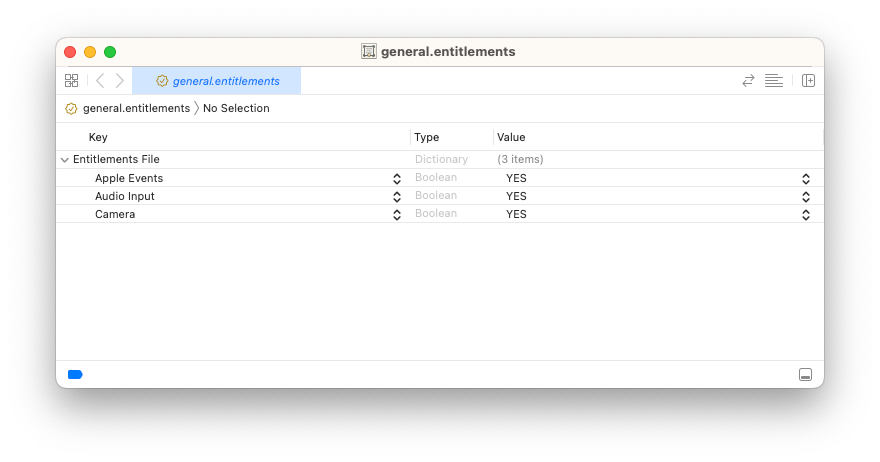
-
aomhost.entitlements: Allow Execution of JIT-compiled Code, Allow Unsigned Executable Memory, Audio Input, and Camera booleans should be set to
YES.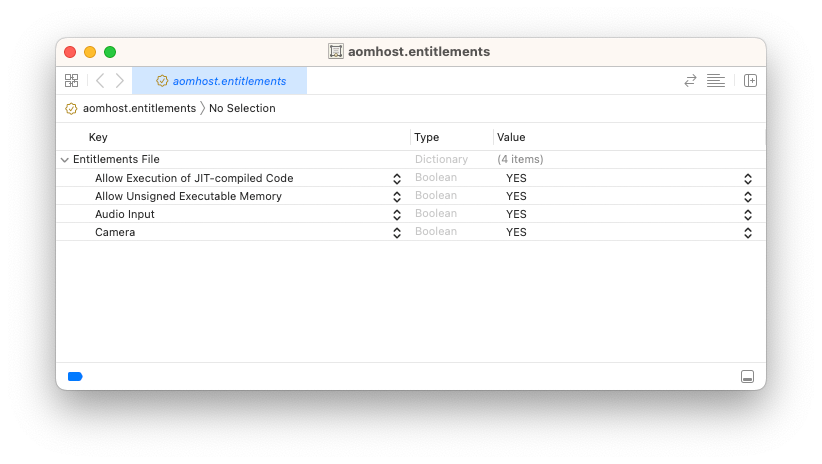
-
caphost.entitlements: Disable Library Validation boolean should be set to
YES.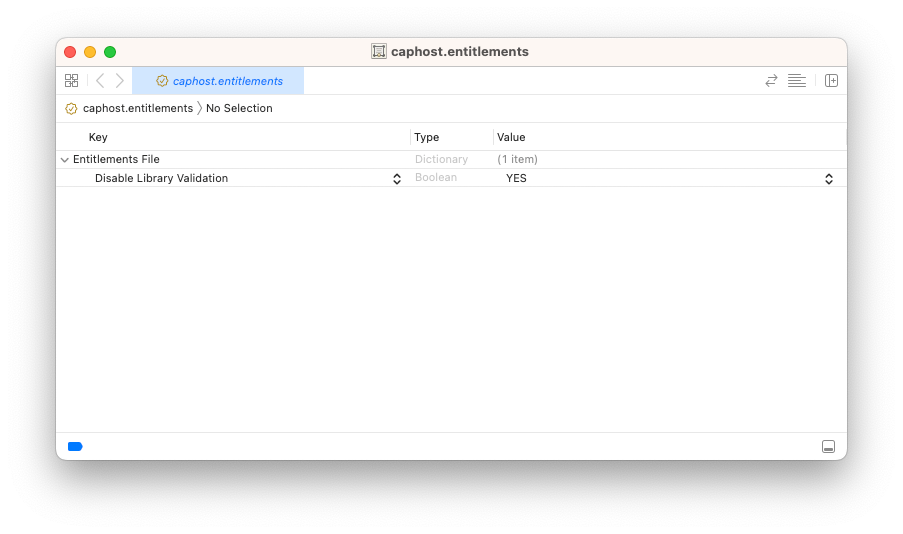
Next, create a script resign_app.sh and place it in the root level of your project, at the same level as your entitlement files and the ZoomSDK directory. Replace YOUR_SIGNING_CERTIFICATE_ID with the exact name of your Signing Certificate in Keychain Access.
#!/bin/sh
# This script takes two parameters:
#
# 1. The path to the app that you want each component to be signed.
# 2. The path to the folder containing the entitlements files
#
# Additionally, you need to make sure that the value of certification_name
# is set to the Developer ID certificate that you will be using to sign the application.
#
# Run the script as follows:
#
# sh resign_ta_meetingsdk.sh path_to_app path_to_entitlements_folder
#
# The console will show the progress of the signing and will note any problems.
#
# If the ZoomSDK requires additional components to be signed, you should add them
# in the section under # Sign Zoom SDK.
#
#
current_path=$(
  cd "$(dirname "$0")"
  pwd
)
zoom_lib_path="$1/Contents/Frameworks"
zoom_resource_path="$1/Contents/Resources"
sample_path="$1"
certification_name="YOUR_SIGNING_CERTIFICATE_ID"
zoom_entitlements_path="$2/general.entitlements"
aomhost_entitlements_path="$2/aomhost.entitlements"
caphost_entitlements_path="$2/caphost.entitlements"
app_entitlements_path="$2/general.entitlements"
zoom_audioDirver_path="$1/Contents/PlugIns"
echo "signed zoom_lib_path is $zoom_lib_path"
# Sign Zoom SDK
echo --sign ZoomSDK Begin --
echo --sign airhost --
codesign --force --verify --verbose --options runtime --sign "${certification_name}" "$zoom_lib_path/airhost.app/Contents/Frameworks/libavcodec.58.dylib"
codesign --force --verify --verbose --options runtime --sign "${certification_name}" "$zoom_lib_path/airhost.app/Contents/Frameworks/libavformat.58.dylib"
codesign --force --verify --verbose --options runtime --sign "${certification_name}" "$zoom_lib_path/airhost.app/Contents/Frameworks/libavutil.56.dylib"
codesign --force --verify --verbose --options runtime --sign "${certification_name}" "$zoom_lib_path/airhost.app/Contents/Frameworks/libswresample.3.dylib"
codesign --force --verify --verbose --options runtime --sign "${certification_name}" "$zoom_lib_path/airhost.app/Contents/Frameworks/libswscale.5.dylib"
codesign --force --verify --verbose --entitlements $zoom_entitlements_path --options runtime --sign "${certification_name}" "$zoom_lib_path/airhost.app"
echo --sign aomhost --
codesign --force --verify --verbose --options runtime --sign "${certification_name}" "$zoom_lib_path/aomhost.app/Contents/Frameworks/dvf.framework/Versions/A/dvf"
codesign --force --verify --verbose --options runtime --sign "${certification_name}" "$zoom_lib_path/aomhost.app/Contents/Frameworks/libcmlFramework.framework/Versions/A/libcmlFramework"
if [ -e "$zoom_lib_path/aomhost.app/Contents/Frameworks/libmklFramework.framework" ]; then
  codesign --force --verify --verbose --options runtime --sign "${certification_name}" "$zoom_lib_path/aomhost.app/Contents/Frameworks/libmklFramework.framework/Versions/A/Frameworks/libmkldnn.0.dylib"
  codesign --force --verify --verbose --options runtime --sign "${certification_name}" "$zoom_lib_path/aomhost.app/Contents/Frameworks/libmklFramework.framework/Versions/A/libmklFramework"
fi
codesign --force --verify --verbose --options runtime --sign "${certification_name}" "$zoom_lib_path/aomhost.app/Contents/Frameworks/util.framework/Versions/A/util"
codesign --force --verify --verbose --options runtime --sign "${certification_name}" "$zoom_lib_path/aomhost.app/Contents/Frameworks/zmp.bundle/Contents/Frameworks/libavcodec.58.dylib"
codesign --force --verify --verbose --options runtime --sign "${certification_name}" "$zoom_lib_path/aomhost.app/Contents/Frameworks/zmp.bundle/Contents/Frameworks/libavformat.58.dylib"
codesign --force --verify --verbose --options runtime --sign "${certification_name}" "$zoom_lib_path/aomhost.app/Contents/Frameworks/zmp.bundle/Contents/Frameworks/libavutil.56.dylib"
codesign --force --verify --verbose --options runtime --sign "${certification_name}" "$zoom_lib_path/aomhost.app/Contents/Frameworks/zmp.bundle/Contents/Frameworks/libswresample.3.dylib"
codesign --force --verify --verbose --options runtime --sign "${certification_name}" "$zoom_lib_path/aomhost.app/Contents/Frameworks/zmp.bundle/Contents/Frameworks/libswscale.5.dylib"
codesign --force --verify --verbose --options runtime --sign "${certification_name}" "$zoom_lib_path/aomhost.app/Contents/Frameworks/zmp.bundle"
codesign --force --verify --verbose --entitlements $aomhost_entitlements_path --options runtime --sign "${certification_name}" "$zoom_lib_path/aomhost.app"
echo --sign caphost --
codesign --force --verify --verbose --entitlements $caphost_entitlements_path --options runtime --sign "${certification_name}" "$zoom_lib_path/caphost.app"
#echo --sign mphost
#codesign --force --verify --verbose --entitlements $zoom_entitlements_path --options runtime --sign "${certification_name}" $zoom_lib_path/mphost.app/Contents/Frameworks/zmp.bundle/Contents/Frameworks/libswscale.5.dylib
#codesign --force --verify --verbose --entitlements $zoom_entitlements_path --options runtime --sign "${certification_name}" $zoom_lib_path/mphost.app/Contents/Frameworks/zmp.bundle/Contents/Frameworks/libswresample.3.dylib
#codesign --force --verify --verbose --entitlements $zoom_entitlements_path --options runtime --sign "${certification_name}" $zoom_lib_path/mphost.app/Contents/Frameworks/zmp.bundle/Contents/Frameworks/libavutil.56.dylib
#codesign --force --verify --verbose --entitlements $zoom_entitlements_path --options runtime --sign "${certification_name}" $zoom_lib_path/mphost.app/Contents/Frameworks/zmp.bundle/Contents/Frameworks/libavformat.58.dylib
#codesign --force --verify --verbose --entitlements $zoom_entitlements_path --options runtime --sign "${certification_name}" $zoom_lib_path/mphost.app/Contents/Frameworks/zmp.bundle/Contents/Frameworks/libavcodec.58.dylib
#codesign --force --verify --verbose --entitlements $zoom_entitlements_path --options runtime --sign "${certification_name}" $zoom_lib_path//mphost.app/Contents/Frameworks/zmp.bundle
#codesign --force --verify --verbose --entitlements $zoom_entitlements_path --options runtime --sign "${certification_name}" $zoom_lib_path/mphost.app
echo --sign CptHost
codesign --force --verify --verbose --entitlements $zoom_entitlements_path --options runtime --sign "${certification_name}" "$zoom_lib_path/CptHost.app"
echo --sign frameworks --
codesign --force --verify --verbose --options runtime --sign "${certification_name}" "$zoom_lib_path/annoter.bundle"
codesign --force --verify --verbose --options runtime --sign "${certification_name}" "$zoom_lib_path/vtAdapter.framework/Versions/A/vtAdapter"
codesign --force --verify --verbose --options runtime --sign "${certification_name}" "$zoom_lib_path/asproxy.framework/Versions/A/asproxy"
codesign --force --verify --verbose --options runtime --sign "${certification_name}" "$zoom_lib_path/cmmlib.framework/Versions/A/cmmlib"
codesign --force --verify --verbose --options runtime --sign "${certification_name}" "$zoom_lib_path/curl64.framework/Versions/A/curl64"
codesign --force --verify --verbose --options runtime --sign "${certification_name}" "$zoom_lib_path/libcrypto.dylib"
codesign --force --verify --verbose --options runtime --sign "${certification_name}" "$zoom_lib_path/libssl.dylib"
codesign --force --verify --verbose --options runtime --sign "${certification_name}" "$zoom_lib_path/libcares.dylib"
codesign --force --verify --verbose --options runtime --sign "${certification_name}" "$zoom_lib_path/mcm.bundle"
codesign --force --verify --verbose --options runtime --sign "${certification_name}" "$zoom_lib_path/libminizip.dylib"
codesign --force --verify --verbose --options runtime --sign "${certification_name}" "$zoom_lib_path/nydus.framework/Versions/A/nydus"
codesign --force --verify --verbose --options runtime --sign "${certification_name}" "$zoom_lib_path/protobuf.framework/Versions/A/protobuf"
codesign --force --verify --verbose --options runtime --sign "${certification_name}" "$zoom_lib_path/SDK_Transcode.app"
codesign --force --verify --verbose --options runtime --sign "${certification_name}" "$zoom_lib_path/ssb_sdk.bundle"
codesign --force --verify --verbose --options runtime --sign "${certification_name}" "$zoom_lib_path/tp.framework/Versions/A/tp"
codesign --force --verify --verbose --options runtime --sign "${certification_name}" "$zoom_lib_path/util.framework/Versions/A/util"
codesign --force --verify --verbose --options runtime --sign "${certification_name}" "$zoom_lib_path/viper.framework/Versions/A/viper"
codesign --force --verify --verbose --options runtime --sign "${certification_name}" "$zoom_lib_path/viperex.bundle"
codesign --force --verify --verbose --options runtime --sign "${certification_name}" "$zoom_lib_path/xmpp_framework.framework/Versions/A/xmpp_framework"
codesign --force --verify --verbose --options runtime --sign "${certification_name}" "$zoom_lib_path/ZoomKit.framework/Versions/A/ZoomKit"
codesign --force --verify --verbose --options runtime --sign "${certification_name}" "$zoom_lib_path/zData.bundle"
codesign --force --verify --verbose --options runtime --sign "${certification_name}" "$zoom_lib_path/zlt.bundle"
codesign --force --verify --verbose --options runtime --sign "${certification_name}" "$zoom_lib_path/zmb.bundle"
codesign --force --verify --verbose --options runtime --sign "${certification_name}" "$zoom_lib_path/ZoomMeetingBridge.framework/Versions/A/ZoomMeetingBridge"
codesign --force --verify --verbose --options runtime --sign "${certification_name}" "$zoom_lib_path/ZoomSDK.framework/Versions/A/ZoomSDK"
codesign --force --verify --verbose --options runtime --sign "${certification_name}" "$zoom_lib_path/ZoomSDKChatUI.framework/Versions/A/ZoomSDKChatUI"
codesign --force --verify --verbose --options runtime --sign "${certification_name}" "$zoom_lib_path/zMacRes.bundle"
codesign --force --verify --verbose --options runtime --sign "${certification_name}" "$zoom_lib_path/zMacResRetina.bundle"
codesign --force --verify --verbose --options runtime --sign "${certification_name}" "$zoom_lib_path/zVideoApp.bundle"
codesign --force --verify --verbose --options runtime --sign "${certification_name}" "$zoom_lib_path/ZoomSDKVideoUI.framework/Versions/A/ZoomSDKVideoUI"
codesign --force --verify --verbose --options runtime --sign "${certification_name}" "$zoom_lib_path/zWebService.bundle"
codesign --force --verify --verbose --options runtime --sign "${certification_name}" "$zoom_lib_path/aomagent.bundle"
codesign --force --verify --verbose --options runtime --sign "${certification_name}" "$zoom_lib_path/zmLoader.bundle"
codesign --force --verify --verbose --options runtime --sign "${certification_name}" "$zoom_lib_path/libjson.dylib"
codesign --force --verify --verbose --options runtime --sign "${certification_name}" "$zoom_lib_path/zKBCrypto.bundle"
codesign --force --verify --verbose --options runtime --sign "${certification_name}" "$zoom_lib_path/RingtoneRes.bundle"
codesign --force --verify --verbose --options runtime --sign "${certification_name}" "$zoom_lib_path/fdkaac2.bundle"
codesign --force --verify --verbose --options runtime --sign "${certification_name}" "$zoom_lib_path/zVideoUIEx.bundle"
codesign --force --verify --verbose --options runtime --sign "${certification_name}" "$zoom_lib_path/ZoomUnit.framework/Versions/A/ZoomUnit"
codesign --force --verify --verbose --options runtime --sign "${certification_name}" "$zoom_lib_path/whiteboard.bundle"
if [ -e "$zoom_lib_path/zVideoUIBridge.framework" ]; then
     codesign --force --verify --verbose --options runtime --sign "${certification_name}" "$zoom_lib_path/zVideoUIBridge.framework/Versions/A/zVideoUIBridge"
fi
if [ -e "$zoom_lib_path/zChatComponent.framework" ]; then
     codesign --force --verify --verbose --options runtime --sign "${certification_name}" "$zoom_lib_path/zChatComponent.framework/Versions/A/zChatComponent"
fi
if [ -e "$zoom_lib_path/libzoombase_crypto_shared.dylib" ]; then
     codesign --force --verify --verbose --options runtime --sign "${certification_name}" "$zoom_lib_path/libzoombase_crypto_shared.dylib"
fi
if [ -e "$zoom_lib_path/Lottie.framework" ]; then
     codesign --force --verify --verbose --options runtime --sign "${certification_name}" "$zoom_lib_path/Lottie.framework/Versions/A/Lottie"
fi
if [ -e "$zoom_lib_path/zoomtasdk.framework" ]; then
     codesign --force --verify --verbose --options runtime --sign "${certification_name}" "$zoom_lib_path/zoomtasdk.framework/Versions/A/zoomtasdk"
fi
if [ -e "$zoom_resource_path/Lib/site-packages/TAAllWrapper.cpython-38-darwin.so" ]; then
     codesign --force --verify --verbose --options runtime --sign "${certification_name}" "$zoom_resource_path/Lib/site-packages/TAAllWrapper.cpython-38-darwin.so"
fi
if [ -e "$zoom_audioDirver_path/ZoomAudioDevice.driver" ]; then
     codesign --force --verify --verbose --options runtime --sign "${certification_name}" "$zoom_audioDirver_path/ZoomAudioDevice.driver/Contents/MacOS/ZoomAudioDevice"
fi
echo --sign ZoomSDK End --
echo --sign app --
codesign --force --verify --verbose --entitlements $app_entitlements_path --options runtime --sign "${certification_name}" "$sample_path"
echo --sign app End --
Run resign_app.sh automatically during project archiving
This script can be run automatically with a Post-actions script in your Xcode release scheme.
- Select Scheme under the Product menu and choose your release scheme. (Or
Command + <) - Click on Product > Scheme > Edit Scheme.
- Click the disclosure triangle next to Archive in the left bar.
- Select Post-actions.
- Click the + button and select New Run Script Action.
- Add the following script, replacing
NAME_OF_YOUR_APPaccordingly.
# Type a script or drag a script file from your workspace to insert its path.

exec > "/tmp/Xcode.log" 2>&1

osascript -e "display notification \"Running Release Archive Signing Script\" sound name \"Sosumi\""

echo "Running Release Archive Signing Script"

PROJECT_DIR="$SRCROOT"
ARCHIVE_PATH="$ARCHIVE_PATH"

"$PROJECT_DIR/resign_app.sh" "$ARCHIVE_PATH/Products/Applications/NAME_OF_YOUR_APP.app" "$PROJECT_DIR"

# Show a notification and beep when signing is complete.

osascript -e "display notification \"NAME_OF_YOUR_APP Archiving and Signing Complete.\" sound name \"Beep\""
When you archive your project, the script will run and notify you via Notification Center when signing is complete. Your macOS app can now be sent to Apple for notarization.
Notarizing the app
-
Select Organizer under the Window menu.
-
Click on the archive that has been created and signed.
-
Select Distribute App.
-
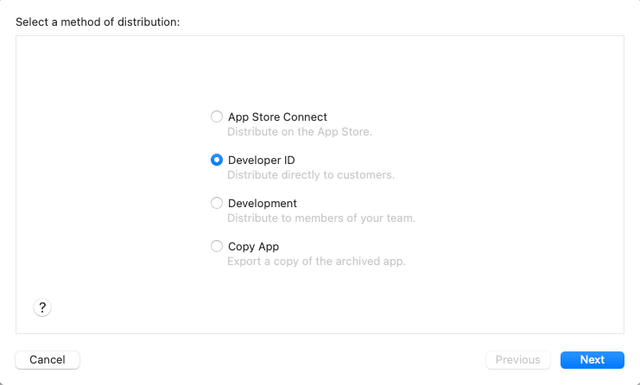
Choose Developer ID on the method distribution screen and click Next.
-
Choose Upload and click Next.
-
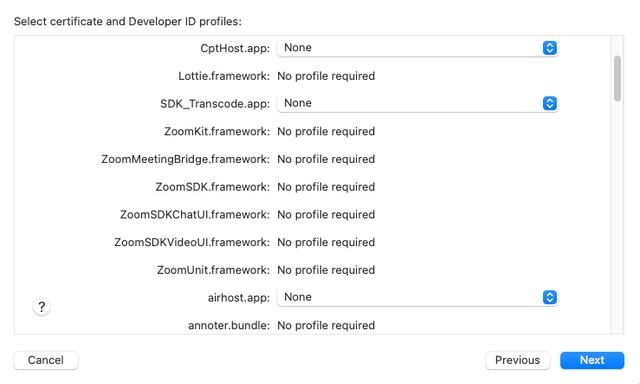
In the Select certificate and Developer ID profiles screen, make sure your Distribution certificate is set to the same certificate used to sign your files earlier, from the Keychain.
-
For the main application, choose your Distribution Profile.
-
Choose None for CptHost.app, SDK_Transcode.app, airhost.app, aomhost.app, and capHost.app. Then click Next to sign the files.
-
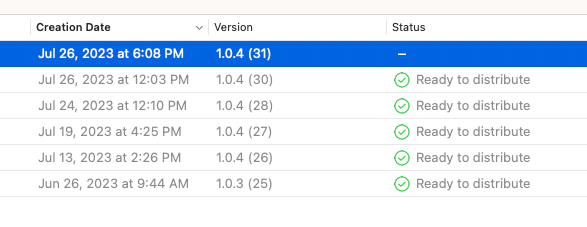
Click Upload. After several minutes, the Developer Account Owner will be notified when Apple has notarized the package. In Organizer, the Status column will also change to Ready to distribute when notarization is complete.
-
Select the archive. Click Distribute App.
-
Choose Developer ID and click Next.
-
With the app notarized, you can now click Export to export the file to your computer. This exported package that can be uploaded to your website or distributed as a Disk Image.
Creating a disk image
When distributing a Developer ID version of your Zoom Meeting SDK application, you will want to package up the application in a Disk Image. To do that, you need to notarize, sign, and staple your Disk Image.
Create the disk image
Terminal can be used to create a Disk Image, though Disk Utility can also be manually used for the same purpose.
(Optional) With Terminal commands, add the CFBundleShortVersionString version and the CFBundleVersion build number string from your app into the filename of your Disk Image, replacing PATH_TO_APP accordingly.
defaults read "PATH_TO_APP/Contents/Info.plist" CFBundleShortVersionString

defaults read "PATH_TO_APP/Contents/Info.plist" CFBundleVersion
Next, we create a folder with the format AppName vVersionString bBuildNumber.
AppName is the name of the application, VersionString is the version string (i.e. 1.0) and BuildNumber is the current build number (i.e. 25). For example: App v1.0.4 b24.
We next run the following script to create a disk image after changing the following variables:
FILENAME: The name of the disk image
ESCAPED_FILENAME: The escaped name of the disk image (i.e replacing spaces with backslash space)
PATH_TO_APP: The escaped path to your application.
rm -rf ~/Desktop/ESCAPED_FILENAME
mkdir ~/Desktop/ESCAPED_FILENAME
cp -R "PATH_TO_APP" ~/Desktop/ESCAPED_FILENAME

osascript -e "tell application \"Finder\" to make new alias to folder (POSIX file \"/Applications\") at folder ((path to desktop as text) & \"FILENAME\")"

hdiutil create -fs HFS+ -srcfolder ~/Desktop/ESCAPED_FILENAME -volname "FILENAME" ~/Desktop/ESCAPED_FILENAME\ Installer.dmg
This script creates an alias to the computer's Applications directory so the user can drag the app into Applications/ after opening the Disk Image.
Sign and notarize the disk image
The disk image also must be sent to Apple for signing and notarization. As a prerequisite, your App Store Connect credentials should be stored in the Keychain under the key AC_PASSWORD. More information can be found at Customizing the notarization workflow and at TN3147: Migrating to the latest notarization tool .
If the entry is set in Keychain, sign the Disk Image with the following Terminal command, with the following variables set:
PATH_TO_DISK_IMAGE: The path to the Disk Image.
PROFILE_NAME: The name of the keychain profile.
EMAIL: The email address associated with the Apple developer account.
xcrun notarytool submit "PATH_TO_DISK_IMAGE" --keychain-profile "PROFILE_NAME" --apple-id "EMAIL" --password "@keychain:AC_PASSWORD" --wait
Since the Disk Image is likely going to be large (on the order of 100+ MB), this process will take time because you need to upload the Disk Image to Apple before Apple can process, sign, and notarize the file. Terminal will output progress and notify you when it has completed.
Staple the disk image
Staple the signature to the Disk Image with the Terminal command, again setting PATH_TO_DISK_IMAGE.
xcrun stapler staple "PATH_TO_DISK_IMAGE"
Validate the disk image
You can now validate that the signature has been stapled correctly.
xcrun stapler validate "PATH_TO_DISK_IMAGE"
Upload to web server or CDN
The Disk Image can now be uploaded for customers to download and use your app.
And that's how you update and distribute your Zoom Meeting SDK application! Thank you for following along and using Zoom Meeting SDK for macOS.