Procedure to collect logs from Zoom Meeting SDK apps
Logging is very essential for Zoom Meeting SDK applications. It provides insights into the application flow and helps engineers debug issues. Zoom collects certain information from the data received on the backend server. However, this data does not contain information about the client-side application flow. When requests have not reached the backend, client-side logs are needed to understand the call stack.
Zoom Meeting SDK supports the log feature, which can be useful for troubleshooting SDK issues. For safety and security concerns, the device logs are encrypted and can only be decrypted by only those who have access to decrypting tool.
⚠ Warning: Enabling debug logs occupies considerable amount of storage. Hence, it can be enabled on demand.
Lets see how to enable and retrieve Zoom Meeting SDK logs in below platforms:
Android
Enable SDK log
To enable SDK log in Android, we should set the below parameters along with the initialize method.
ZoomSDKInitParams initParams = new ZoomSDKInitParams();
initParams.jwtToken = SDK_JWTTOKEN;
//==========
initParams.enableLog = true;
initParams.enableGenerateDump =true;
initParams.logSize = 5;
//==========
initParams.domain=AuthConstants.WEB_DOMAIN;
initParams.videoRawDataMemoryMode = ZoomSDKRawDataMemoryMode.ZoomSDKRawDataMemoryModeStack;
mZoomSDK.initialize(context, this, initParams);
Retrieve SDK log
If the application is in production, we can write code to retrieve the log file and send it via email. If the application is in development environment, we can retrieve logs using "Device explorer" in Android Studio.
Path: /sdcard/Android/data/[package name]/logs File extension: .log
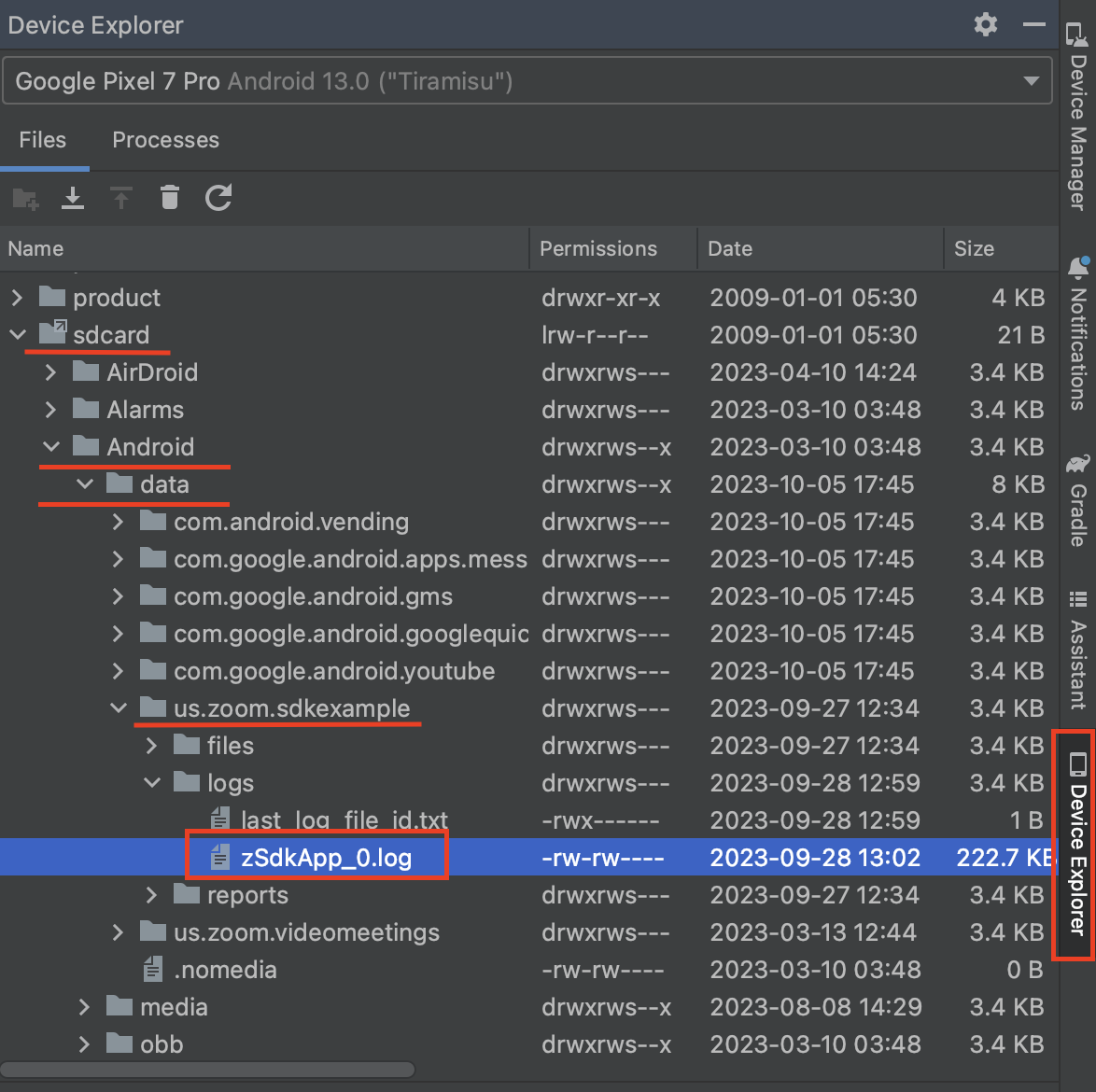
If you are using adb, the below command should help:
adb pull <src> <destination>
Example:
adb pull /sdcard/Android/data/[package name]/logs .
iOS
Enable SDK log
To enable SDK log in iOS, we should set the "enableLog" parameter to "YES" and add it to the initialize method.
MobileRTCSDKInitContext *context = [[MobileRTCSDKInitContext alloc] init];
context.domain = kSDKDomain;
//==========
context.enableLog = YES;
//==========
context.locale = MobileRTC_ZoomLocale_Default;
BOOL initializeSuc = [[MobileRTC sharedRTC] initialize:context];
Retrieve SDK log
If the application is in production, we can write code to retrieve the log file and send it via email. If the application is in development environment, we can retrieve logs using "Devices & Simulator" window.
Path: sandbox/AppData/tmp File extension: .log
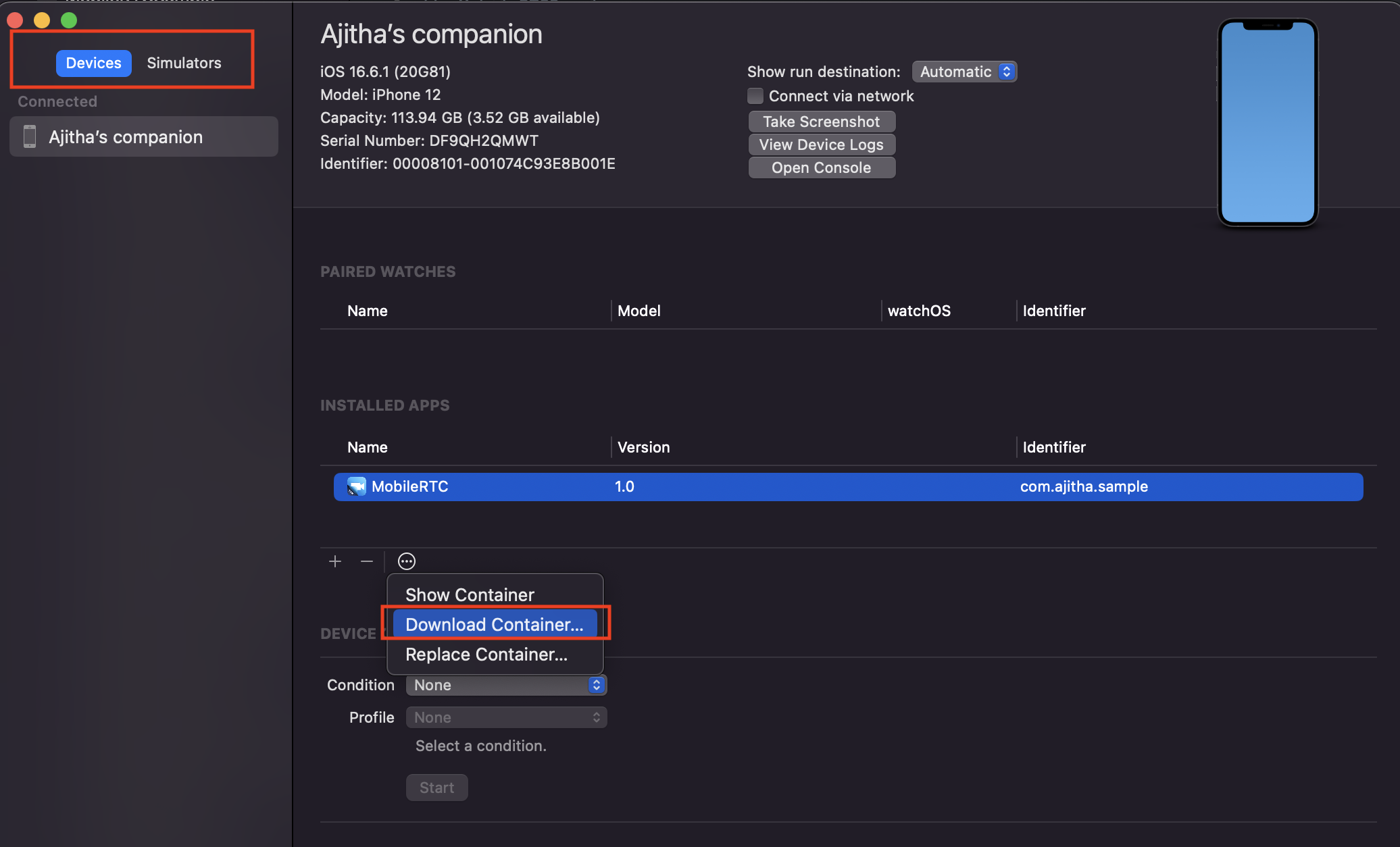
Once the container is downloaded, right click on the file and select "Show Package Contents". It shall open the explorer window and you can navigate to AppData->tmp and retrieve the *.log files.
Starting with iOS 17, Apple introduced subtle changes in how temporary files are handled within exported app containers. As a result, you may no longer see the /tmp folder when inspecting the container contents.
To work around this and retain the ability to collect sandbox logs, users can delete the .../Library/Caches folder. Developers can include logic in their app to perform this cleanup — for example, during app termination — so that it executes automatically each time the app exits.
Below is a sample Objective-C code snippet demonstrating how to safely delete all contents of the Library/Caches directory:
// Delete all contents of Library/Caches safely
NSString *cachePath = [NSSearchPathForDirectoriesInDomains(NSCachesDirectory, NSUserDomainMask, YES) firstObject];
NSFileManager *fileManager = [NSFileManager defaultManager];
NSError *error = nil;
NSArray *cacheFiles = [fileManager contentsOfDirectoryAtPath:cachePath error:&error];
if (error) {
    NSLog(@"Error reading cache directory: %@", error.localizedDescription);
} else {
    for (NSString *file in cacheFiles) {
        NSString *filePath = [cachePath stringByAppendingPathComponent:file];
        BOOL success = [fileManager removeItemAtPath:filePath error:&error];
        if (!success || error) {
            NSLog(@"Failed to remove item at path %@: %@", filePath, error.localizedDescription);
            error = nil; // reset for next iteration
        } else {
            NSLog(@"Deleted %@", filePath);
        }
    }
}
Retrieve crash dump
To retrieve crash logs from iOS device, go to Settings > Privacy & Security > Analytics & Improvements > Analytics Data. From this location, select the "zoom" related crash file and open it. There will be a "Share" button in the top right corner to share the logs.
Windows
Enable SDK log
To enable SDK log in Windows, we should set the "enableLogByDefault" parameter to "true" along with the Init method. The default log size will be 5MB.
ZOOM_SDK_NAMESPACE::InitParam initParam;
initParam.strWebDomain = strWebDomain.c_str();
initParam.strSupportUrl = L"https://zoom.us";
//==========
initParam.enableLogByDefault = true;
//==========
m_bSDKInit = CSDKHelper::Init(initParam);
Retrieve SDK log
Below is the path to retrieve the SDK log
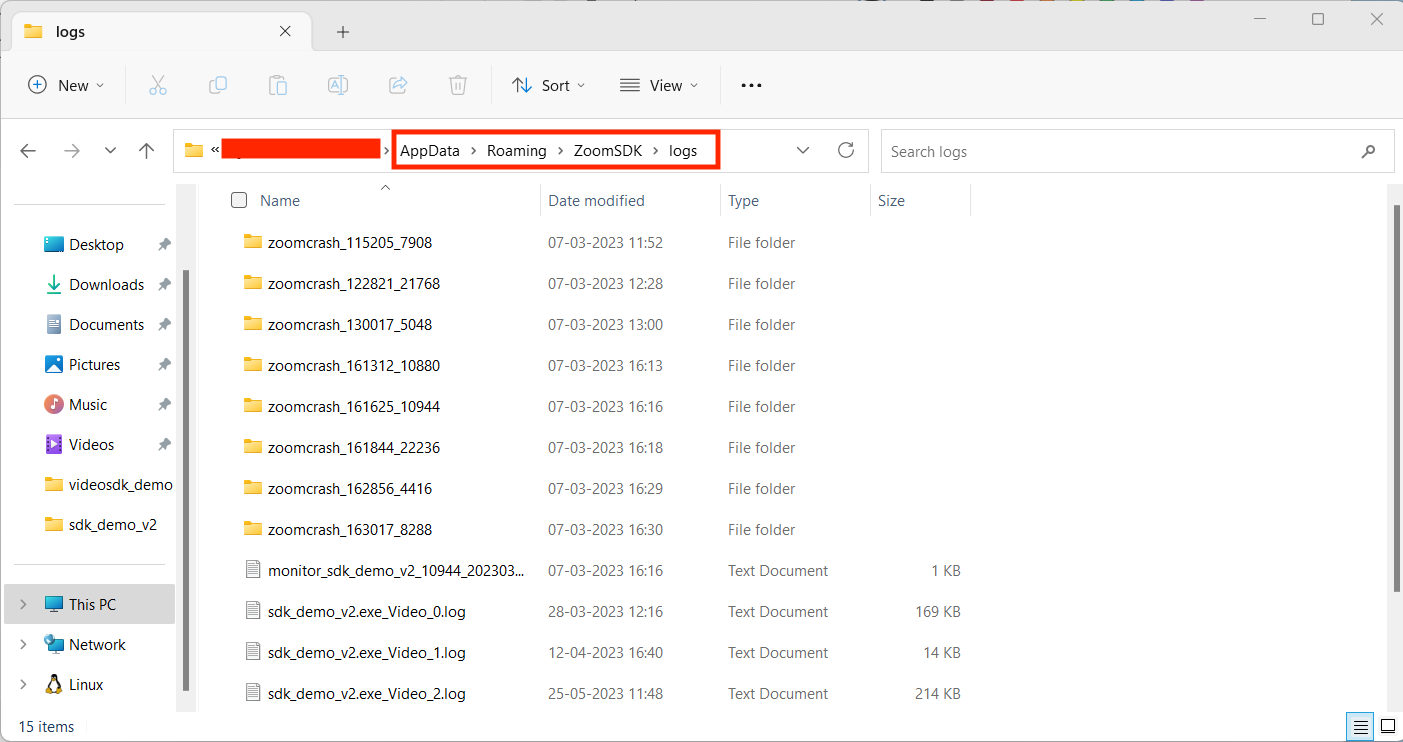
Path: %appdata%/zoomsdk/logs/ File extension: .log
Retrieve crash dump
SDK will generate dump files automatically, if needed, user could find the dump file in %appData%/zoomsdk/logs/
Mac
Enable SDK log
To enable SDK log in Mac, we should set the "enableDefaultLog" parameter to "YES" along with the Init method. The default log size will be 5MB
ZoomSDK* sdk = [ZoomSDK sharedSDK];
[[ZoomSDK sharedSDK] enableDefaultLog:YES fileSize:5];
[sdk initSDK:useCustomizedUI];
Retrieve SDK log
Below is the path to retrieve the SDK log
Path: ~/Library/Logs/appName File extension: .log
Retrieve crash dump
Path: ~/Library/Logs/DiagnosticReports/(appName)

Web
Retrieve console log
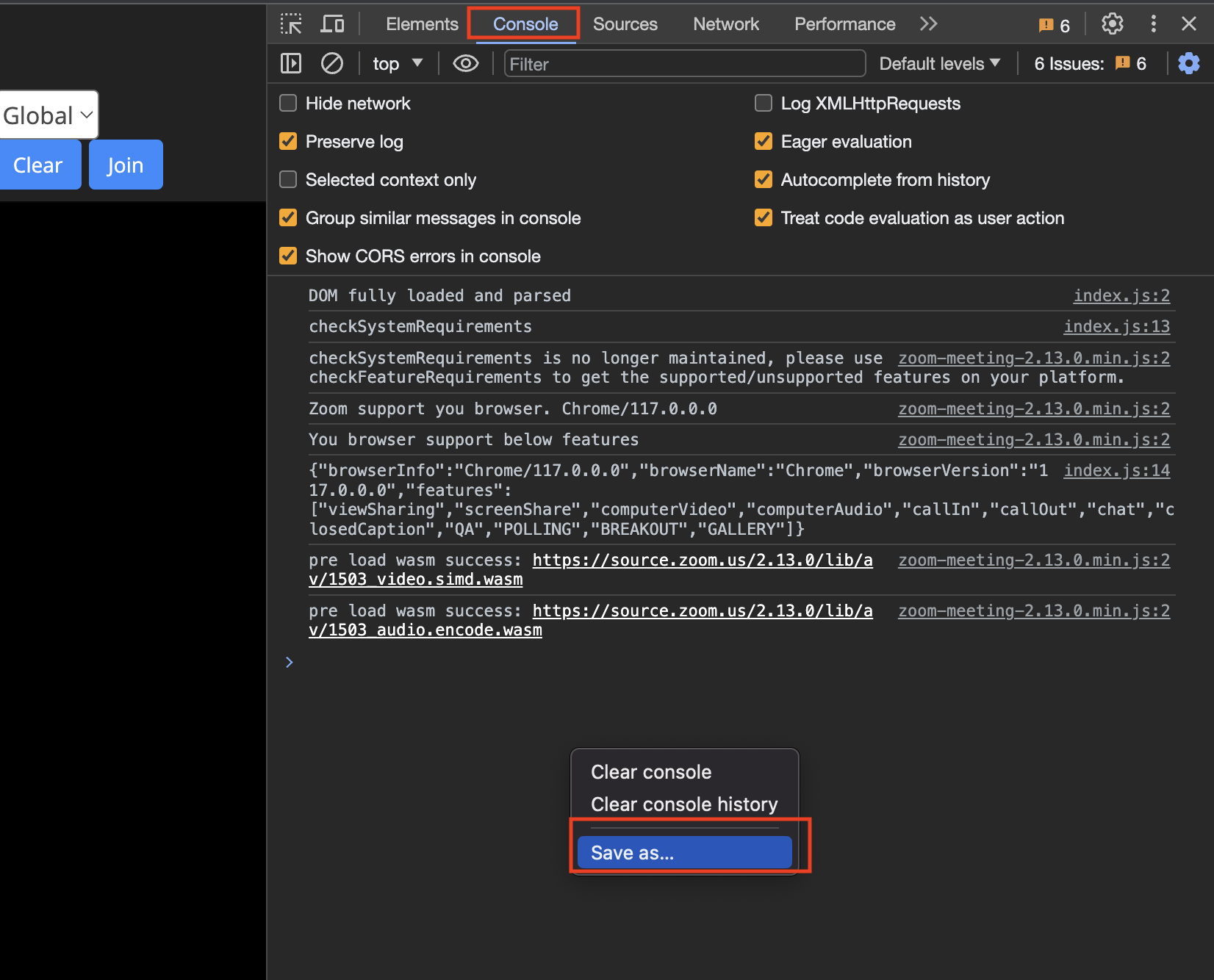
The "console.log" statements in the code shall be printed in the web console. To retrieve them, follow below steps:
- Right click on the browser window->Inspect->Navigate to "console" tab
- Right click on the "console" logs and select "Save as" and share the output file.
Retrieve HAR log
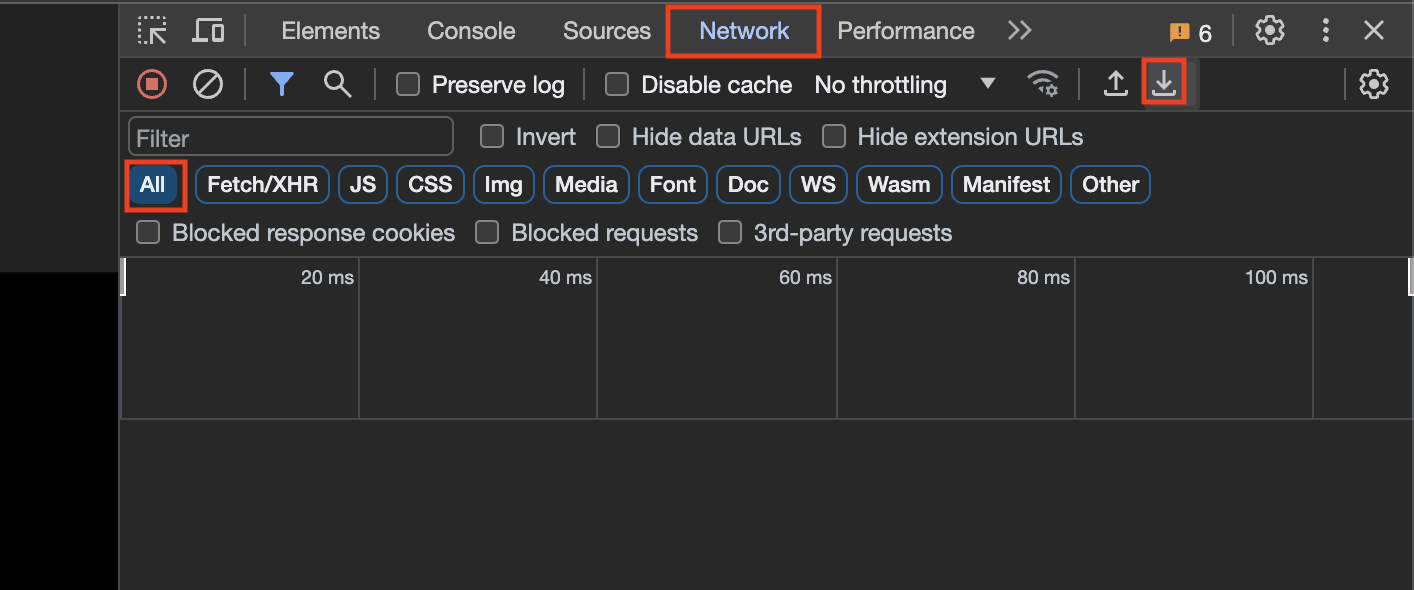
- Right click on the browser window->Inspect->Navigate to "network" tab
- Select "All" and click on the "Download" button and share the output file.
Send report via email
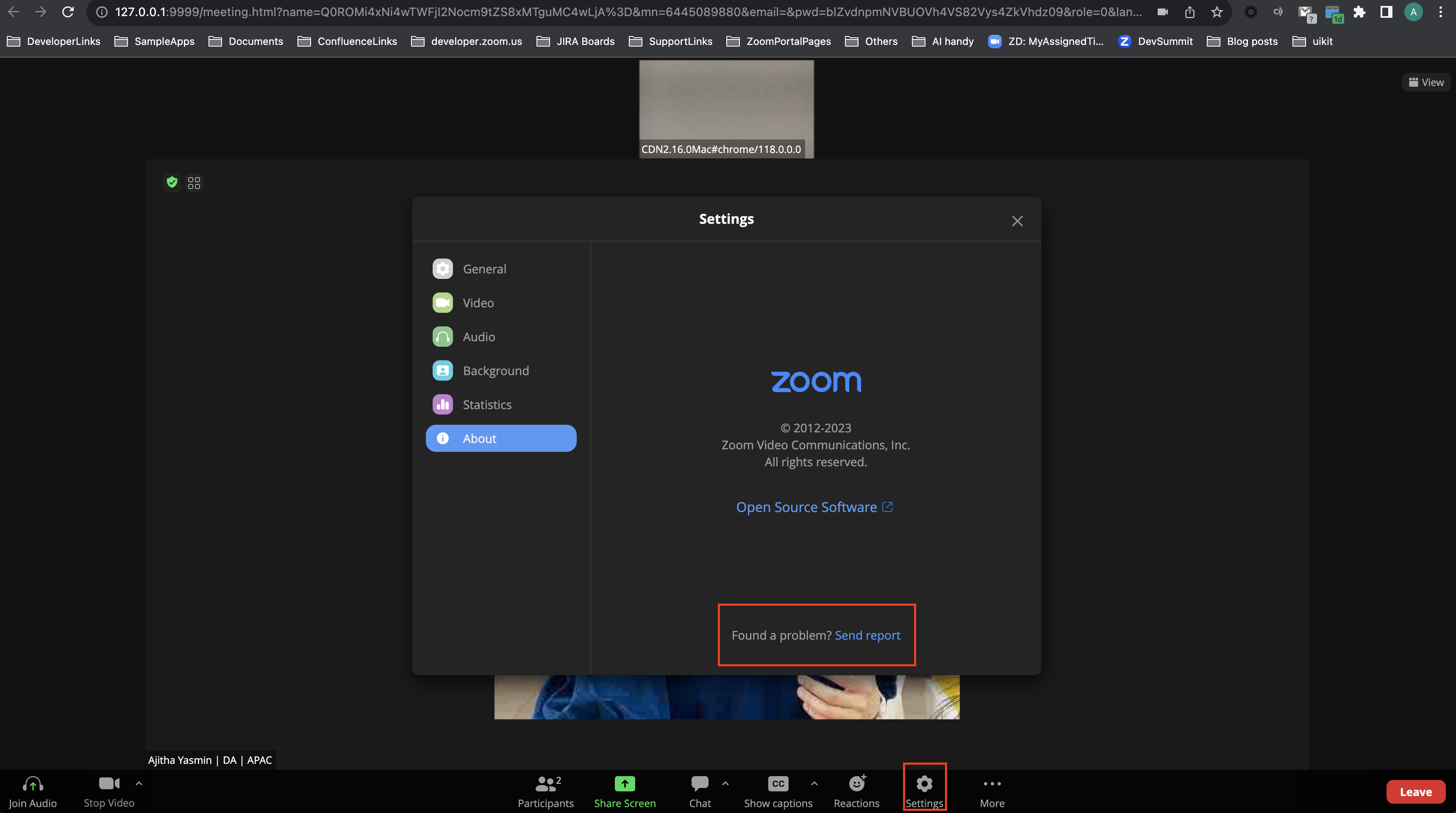
For Meeting SDK versions greater than v2.16.0, there is an option to "Send report" to Zoom via "Settings" option. This feature can also be utilised to send report to zoom.
Happy Coding!