/reminders/client/.env
Zoom Team Chat Apps is a messaging feature in the Zoom video conferencing platform. It allows you to send text-based messages, emojis, and files to individuals or groups in real-time.
Zoom Team Chat Apps are added within the Zoom Client and interact with users using the chat interface. They help in creating quick and easy communication between team members during Zoom meetings or outside of them, and they also provide direct extensions to your service into the chat experience.
In this blog, we'll build a Team Chat App that allows you to send reminders to yourself throughout your day using the popular and open-source backend Appwrite. You'll learn how to take your Apps for Team Chat to the next level using functions alongside the composability of Team Chat messages. Let’s get started!
Prerequisites:
- Zoom account with permissions to create apps
Team Chat Apps enablement:
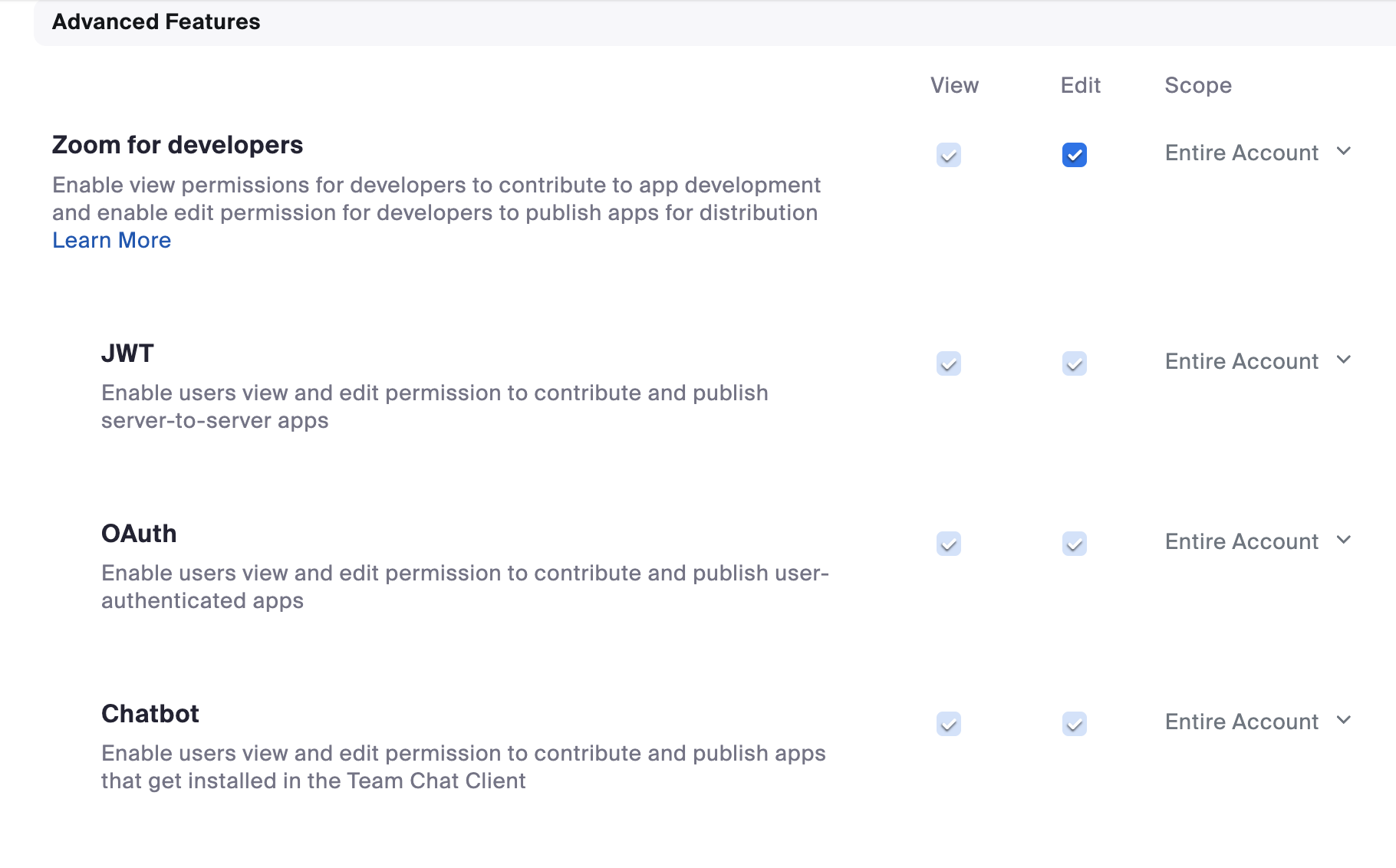
To make sure that you can create a Team Chat Apps, the Admin for your Zoom account or the Owner of the account must enable the view and edit permissions for Team Chat App by going to User Management > Roles > Role Settings > Advanced features.
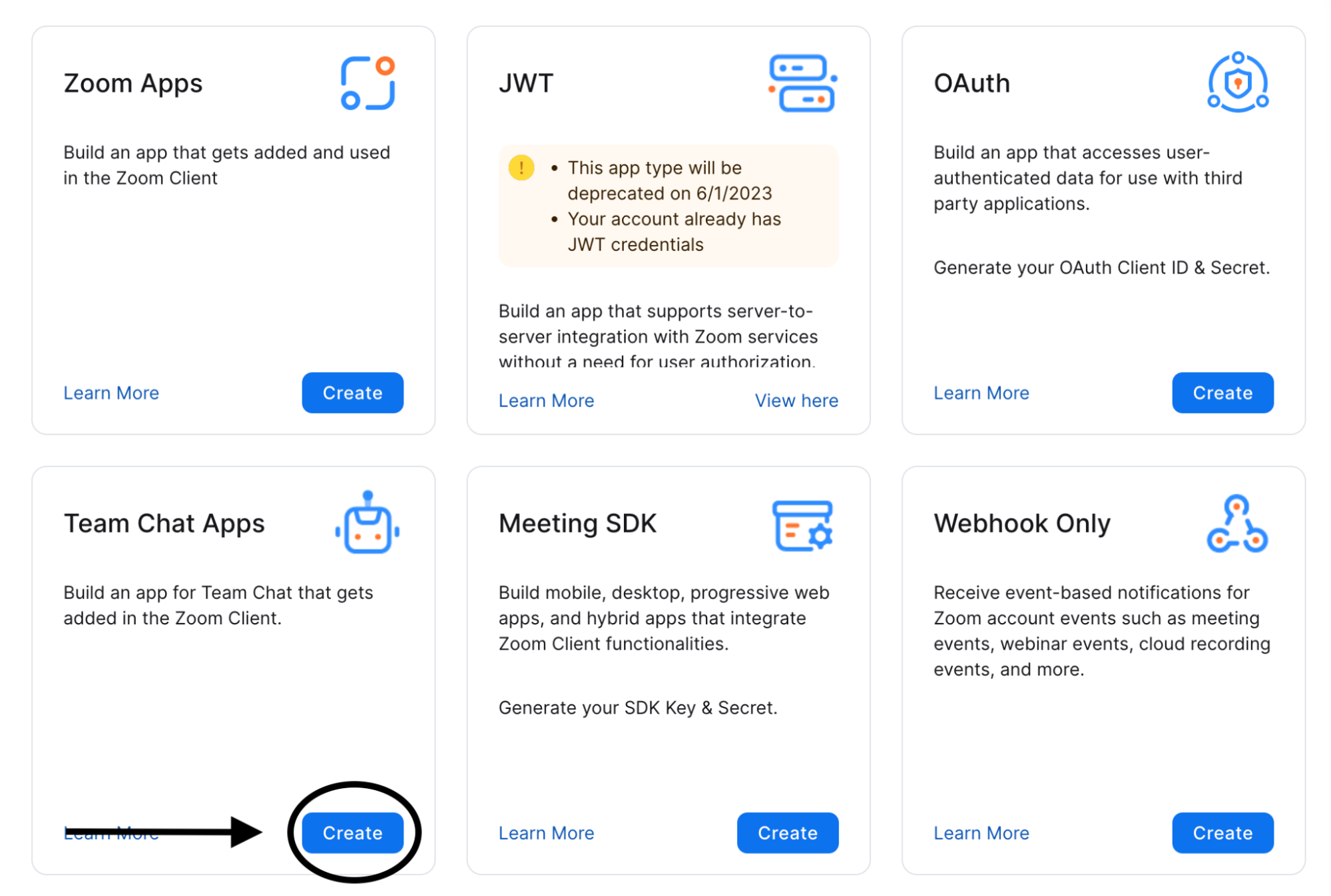
After logging into your Zoom account, head to the Zoom Marketplace. Here, you'll see various app types available, but for the purpose of this blog, we're focusing on creating a User-level Team Chat App.
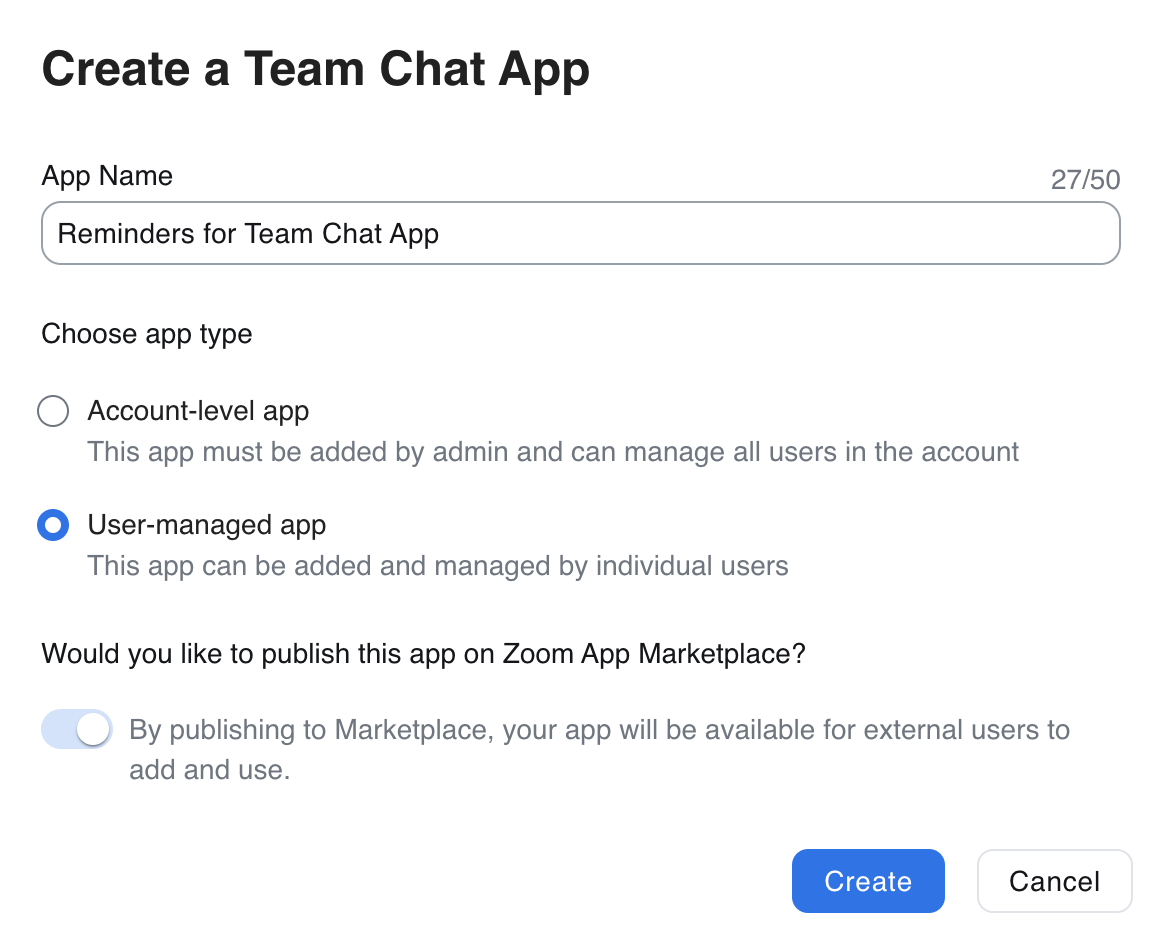
Fill in the required fields like Contact Name, Email, OAuth Redirect URLs, etc. In the Scopes tab, add the user:read scope, which will be used to make an API call to our 'Get a user' endpoint. This endpoint fetches specific data from your profile for our backend implementation.
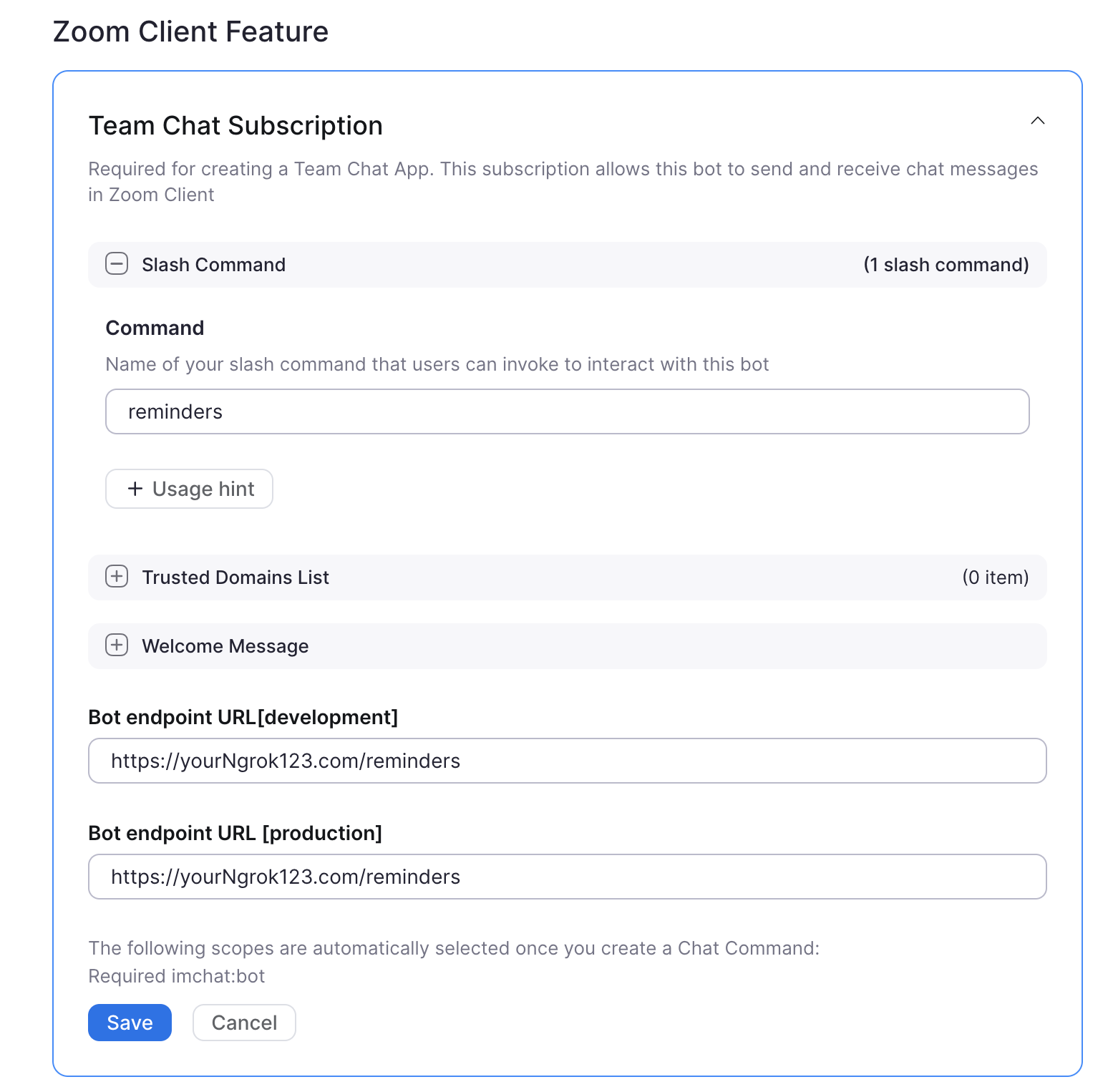
In the Features tab, enable the 'Team Chat Subscription' located under the 'Zoom Client Features' section. Here you'll provide a Bot endpoint URL (for both development and production) and append the slash command reminder at the end of it. You'll revisit this once you have ngrok up and running.
Note: The slash command “reminder” is often taken, you'll have to make it unique. You can try combinations like
reminder01orremindme.
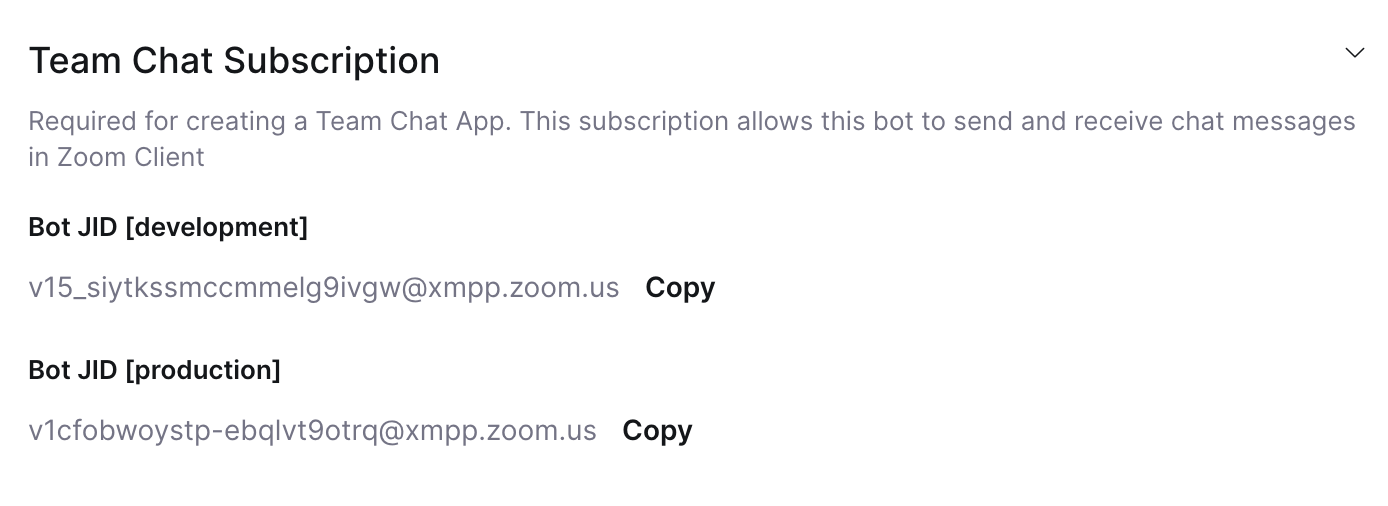
After saving these changes, a set of credentials will be generated for you: Bot JID for both Development and production. Also, if you return to your Scopes tab, you'll see that the imchat:userapp scope was automatically added to your scopes list. However, we'll return to this later when we have our sample app up and running.
Setting up Appwrite for Backend
Once you have your Team Chat App set up, next is to create a backend service using Appwrite - a backend platform built with the open source community and optimized for developer experience.
Appwrite provides you with an array of secure APIs, tools, and a management console UI, which simplifies complex tasks required for building apps. It handles user authentication and management, data and file storage, server-side code execution, image manipulation, and much more.
Prerequisites
- Running Appwrite instance (cloud or self-hosted)
- Appwrite CLI
- Reminders Repo
You can register your Appwrite instance at https://cloud.appwrite.io/register. Instructions for self-hosting are available at https://appwrite.io/docs/self-hosting. The Appwrite CLI can be downloaded from https://appwrite.io/docs/command-line.
Setting up Appwrite
After creating your account and new project, it's time to create a new API key. Add the following scopes:
auth.users.readauth.users.writedatabases- all (can be reduced later)functions- all (can be reduced later)
Download CLI with the following commands:
npm install -g appwrite-cli
appwrite login
Add the API key and project key:
appwrite client --endpoint https://cloud.appwrite.io/v1
appwrite client --key YOUR_APPWRITE_KEY
appwrite client --projectId YOUR_PROJECT_ID
In the sample app, perform the following:
- Copy
./reminders/appwrite.json_sampleto./reminders/appwrite.json
cp appwrite.json_sample appwrite.json
- Update Appwrite function variables in the
appwrite.jsonfile:
"variables": {
  "ZOOM_CLIENT_ID": "YOUR_CLIENT_ID",
  "ZOOM_CLIENT_SECRET": "YOUR_CLIENT_SECRET",
  "APPWRITE_ENDPOINT": "https://cloud.appwrite.io/v1",
  "APPWRITE_API_KEY": "YOUR_APPWRITE_KEY"
}
- Deploy collections/functions:
appwrite deploy collection
appwrite deploy function
- Reduce the scopes as needed
Setting up Reminders for Team Chat
Change to the /client directory, and use NPM to install dependencies:
cd ./client
npm install
Next, update the .env_sample file to be .env and add your credentials from both your Zoom and Appwrite applications:
cp .env_sample .env
Your .env file should look something like this:
# /reminders/client/.env
# Credentials from your Team Chat App
ZOOM_SECRET_TOKEN = ''
BOT_JID = ''
APPWRITE_ENDPOINT = 'https://cloud.appwrite.io/v1'
APPWRITE_PROJECT = ''
APPWRITE_API_KEY = ''
Once you've updated the .env file and have your ngrok instance up and running, start your application locally using the npm run dev command:
npm run dev
Next, start your ngrok instance, running:
ngrok https 4000
You'll need to take the secure https URL returned and add it in your Reminders Team Chat App, appending the command that you set up earlier, and save the changes.
Also, visit the App Credentials Tab in your Reminders Team Chat App and update the redirect for the OAuth URL as well.

Authorize app in your account
With your application running and your backend also running, go to the Local Test tab in your Reminders Team Chat app and click on the “Generate” button to generate a Testable URL. Copy this URL and paste it in your browser to authorize the app in your environment and add your application to your Zoom client.
After authorizing the app, head to a channel or a conversation that you had open and test it out, for example:
/remindme to drink water in 3 minutes
Then, just wait for 3 minutes and you will get a reminder back in your client.
Wrap up
Apps for Team Chat has many features that you can build, and this only scratches the surface. To learn how to start adding additional functionality to your reminder app - check out our documentation page. I would love to hear from you what ideas you have, and how you are planning to implement them.