# How to use Twilio IVR Dial Trees with the Zoom Meeting SDK
One of the advantages of the [Zoom Meeting SDK](/docs/meeting-sdk/) is our [PSTN](https://support.zoom.com/hc/en/article?id=zm_kb&sysparm_article=KB0064472) and [SIP](https://support.zoom.com/hc/en/article?id=zm_kb&sysparm_article=KB0060661) call out/call in compatibility. This allows developers to connect phone users to Zoom Meetings. Going a step further, PSTN and SIP support allows the Meeting SDK to be used with complex IVR dial tree use cases. For example, if I am calling a phone number to talk to a support agent, pressing numbers along the way to route me to the right point of contact, I can be connected into a Zoom Meeting via the Zoom PSTN or SIP bridge with an agent present in the Zoom Meeting.
Below is an example of how to use the Zoom Meeting with [Twilio's IVR dial tree](https://www.twilio.com/docs/voice/interactive-voice-response).
## Prerequisites
1. [Twilio account](https://www.twilio.com/docs/voice/quickstart/no-code-voice-studio-quickstart#sign-up-for-or-sign-in-to-twilio) with a [phone number](https://www.twilio.com/docs/voice/quickstart/no-code-voice-studio-quickstart#get-a-phone-number).
1. [Zoom User account](https://zoom.us/signup) with the [Meeting SDK](/docs/meeting-sdk/get-credentials/) and [PSTN](https://support.zoom.com/hc/en/article?id=zm_kb&sysparm_article=KB0064472) or [SIP](https://support.zoom.com/hc/en/article?id=zm_kb&sysparm_article=KB0060661) add on.
## Getting the Zoom Meeting dial in info
There are a few ways to get the dial in info for a Zoom Meeting.
- Meeting SDK functions ([android example](https://marketplacefront.zoom.us/sdk/meeting/android/us/zoom/sdk/PhoneHelper.CallInPhoneNumberInfo.html)).
- [GET Meeting REST API](/docs/api/meetings/#tag/meetings/GET/meetings/{meetingId}) (see `global_dial_in_numbers`).
```json
{
"id": 123456789,
"h323_password": "1234", // numeric passcode for sip, h323, PSTN dial in
"settings": [
"global_dial_in_numbers": [{
"city": "New York",
"country": "US",
"country_name": "US",
"number": "+1 1234567890",
"type": "toll"
}]
]
}
```
- [GET Meeting Invitation REST API](/docs/api/meetings/#tag/meetings/GET/meetings/{meetingId}/invitation) (see `sip_links`).
```js
{
"sip_links": [
"5550100@zoomcrc.com"
]
}
```
The Zoom dial in info convention is Phone Number -> Meeting ID followed by # -> Participant ID (optional) followed by # -> password followed by #. The Participant ID is optional, to bypass it, just press #.
## Using Twilio IVR Dial Tree
The Twilio IVR Dial Tree platform allows you to design dial trees via code using your favorite language with the [TwiML™ language](https://www.twilio.com/docs/voice/twiml), or with a drag and drop studio designer.
### IVR Dial Tree using Twilio Studio
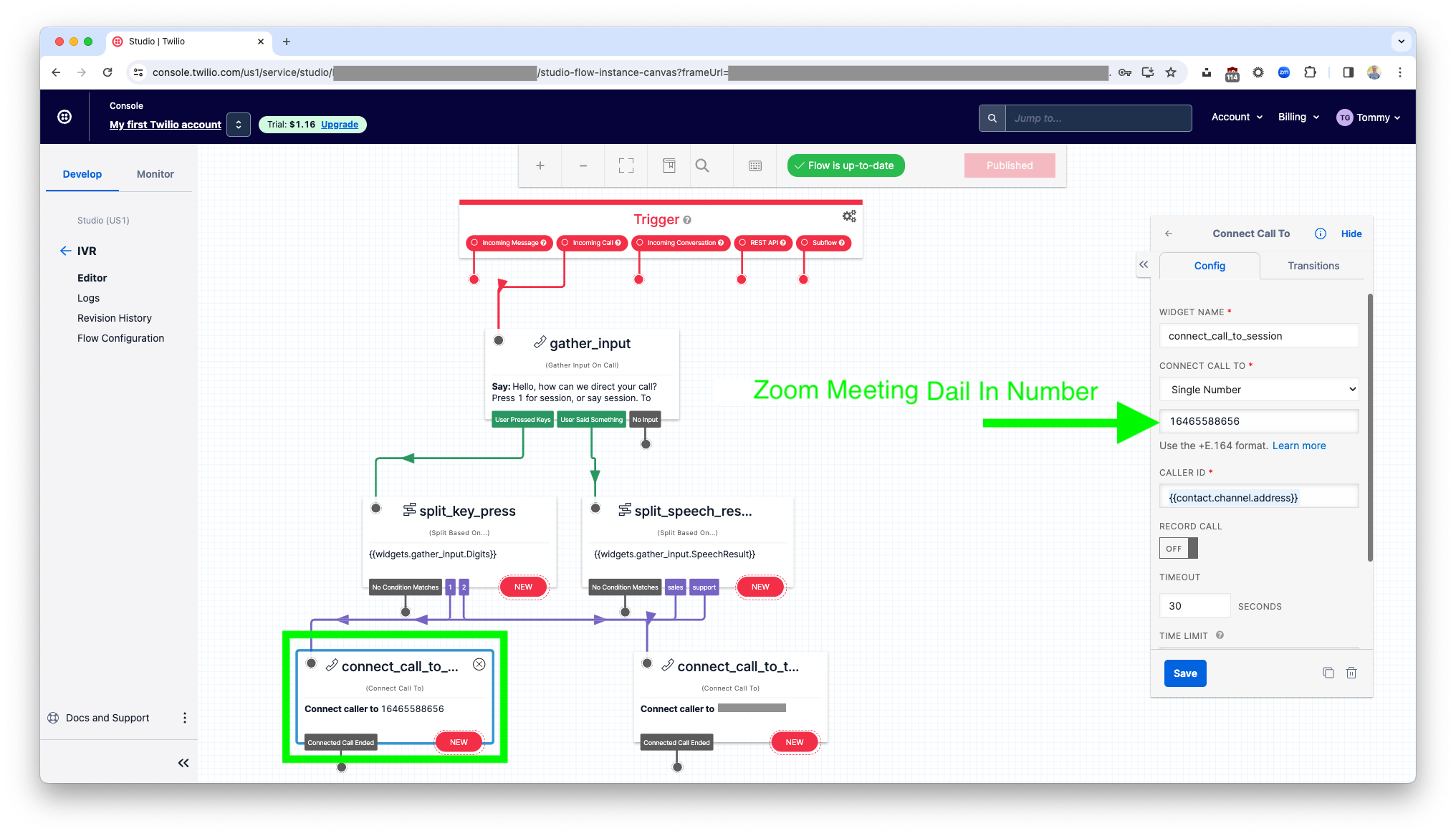
1. Setup the [base IVR flow in Twilio studio](https://www.twilio.com/docs/studio/tutorials/how-to-build-an-ivr).
1. Update the [connect call](https://www.twilio.com/docs/studio/tutorials/how-to-build-an-ivr#connect-the-calls) number to your [Zoom Meeting PSTN dial in number or SIP address](#getting-the-zoom-meeting-dial-in-info).
[Twilio Studio does not currently support including DTMF tones or pauses](https://stackoverflow.com/questions/53356939/dial-an-extension-using-dtmf-tones-after-a-pause-twilio-studio), which would allow you to auto dial the meeting ID and passcode. However, this is something you can do with Twilio TwiML™, see below for an example.
1. Click save and publish.
### IVR Dial Tree using Twilio TwiML™
1. Use the [Twilio Voice SDK](https://www.twilio.com/docs/voice/twiml/dial) to connect the call to your [Zoom Meeting PSTN dial in number or SIP address](#getting-the-zoom-meeting-dial-in-info).
You can auto dial the meeting ID (`id` ^) and passcode (`h323_password` ^) using the [`sendDigits` property](https://www.twilio.com/docs/voice/twiml/number#attributes-senddigits).
TwiML™ PSTN example:
```xml
11234567890
```
Node.js PSTN example:
```js
const VoiceResponse = require("twilio").twiml.VoiceResponse;
const response = new VoiceResponse();
const dial = response.dial();
dial.number(
{
sendDigits: "wwww123456789#wwww#wwww1234#",
},
"11234567890",
);
console.log(response.toString());
```
TwiML™ SIP example:
```xml
sip:5550100@zoomcrc.com
```
Node.js SIP example:
```js
const VoiceResponse = require("twilio").twiml.VoiceResponse;
const response = new VoiceResponse();
const dial = response.dial();
dial.sip("sip:5550100@zoomcrc.com");
console.log(response.toString());
```
## Testing the tree
1. Make a phone call to your Twilio number.
1. Press 1. or the respective flow you designed to dial into your Zoom meeting number.
1. If successful, a PSTN or SIP user will have joined the Zoom Meeting.