How to use Twilio IVR Dial Trees with the Zoom Meeting SDK
One of the advantages of the Zoom Meeting SDK is our PSTN and SIP call out/call in compatibility. This allows developers to connect phone users to Zoom Meetings. Going a step further, PSTN and SIP support allows the Meeting SDK to be used with complex IVR dial tree use cases. For example, if I am calling a phone number to talk to a support agent, pressing numbers along the way to route me to the right point of contact, I can be connected into a Zoom Meeting via the Zoom PSTN or SIP bridge with an agent present in the Zoom Meeting.
Below is an example of how to use the Zoom Meeting with Twilio's IVR dial tree.
Prerequisites
- Twilio account with a phone number.
- Zoom User account with the Meeting SDK and PSTN or SIP add on.
Getting the Zoom Meeting dial in info
There are a few ways to get the dial in info for a Zoom Meeting.
-
Meeting SDK functions (android example).
-
GET Meeting REST API (see
global_dial_in_numbers).{ "id": 123456789, "h323_password": "1234", // numeric passcode for sip, h323, PSTN dial in "settings": [ "global_dial_in_numbers": [{ "city": "New York", "country": "US", "country_name": "US", "number": "+1 1234567890", "type": "toll" }] ] } -
GET Meeting Invitation REST API (see
sip_links).{ "sip_links": [ "5550100@zoomcrc.com" ] }
The Zoom dial in info convention is Phone Number -> Meeting ID followed by # -> Participant ID (optional) followed by # -> password followed by #. The Participant ID is optional, to bypass it, just press #.
Using Twilio IVR Dial Tree
The Twilio IVR Dial Tree platform allows you to design dial trees via code using your favorite language with the TwiML™ language, or with a drag and drop studio designer.
IVR Dial Tree using Twilio Studio
-
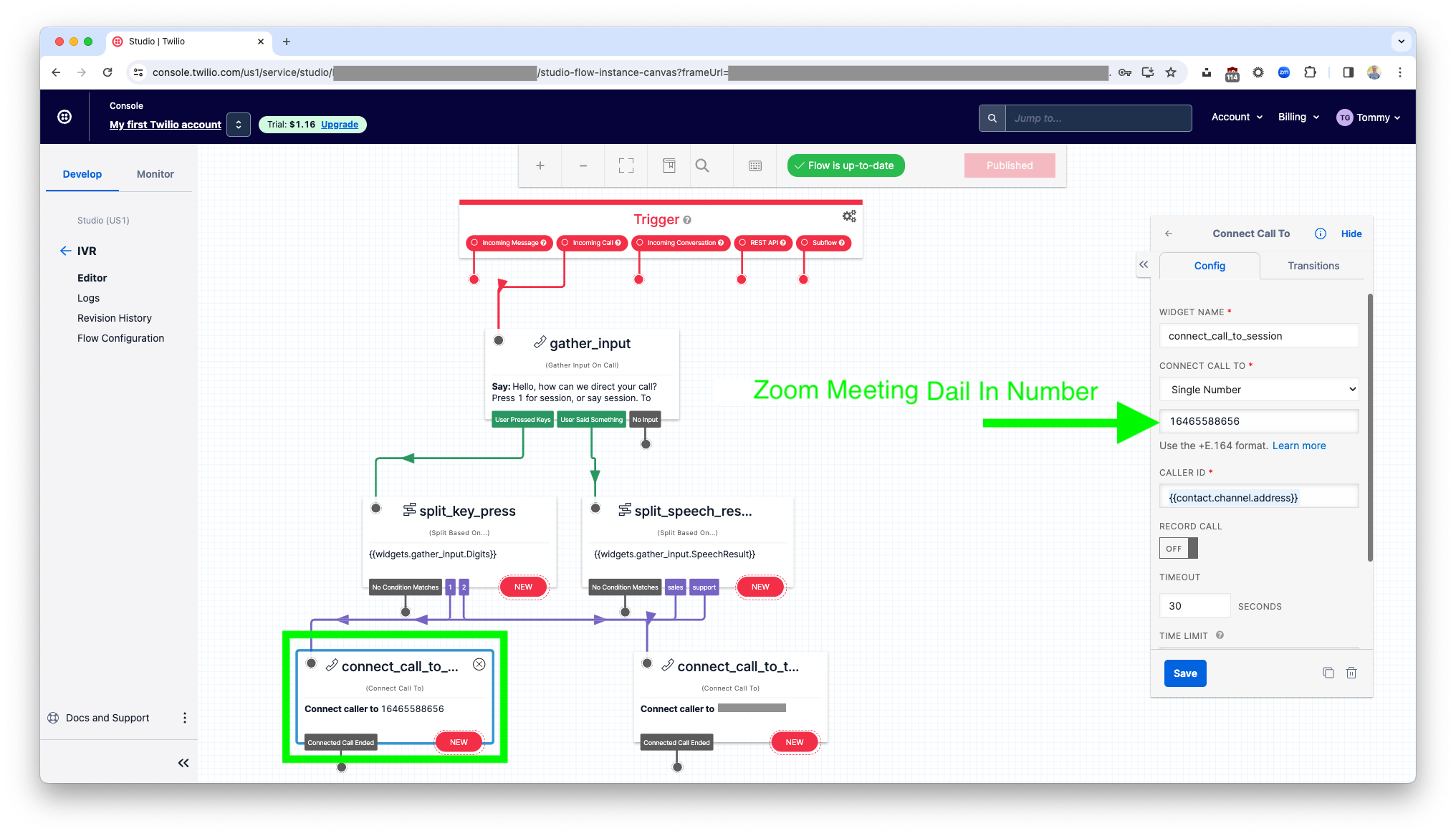
Setup the base IVR flow in Twilio studio.
-
Update the connect call number to your Zoom Meeting PSTN dial in number or SIP address.
Twilio Studio does not currently support including DTMF tones or pauses, which would allow you to auto dial the meeting ID and passcode. However, this is something you can do with Twilio TwiML™, see below for an example.
-
Click save and publish.
IVR Dial Tree using Twilio TwiML™
-
Use the Twilio Voice SDK to connect the call to your Zoom Meeting PSTN dial in number or SIP address.
You can auto dial the meeting ID (
id^) and passcode (h323_password^) using thesendDigitsproperty.TwiML™ PSTN example:
<?xml version="1.0" encoding="UTF-8"?>
<Response>
   <Number sendDigits="wwww123456789#wwww#wwww1234#">
      11234567890
   </Number>
</Response>
Node.js PSTN example:
const VoiceResponse = require("twilio").twiml.VoiceResponse;
const response = new VoiceResponse();
const dial = response.dial();
dial.number(
    {
        sendDigits: "wwww123456789#wwww#wwww1234#",
    },
    "11234567890",
);
console.log(response.toString());
TwiML™ SIP example:
<Response>
   <Dial>
      <Sip>
         sip:5550100@zoomcrc.com
     </Sip>
   </Dial>
</Response>
Node.js SIP example:
const VoiceResponse = require("twilio").twiml.VoiceResponse;
const response = new VoiceResponse();
const dial = response.dial();
dial.sip("sip:5550100@zoomcrc.com");
console.log(response.toString());
Testing the tree
- Make a phone call to your Twilio number.
- Press 1. or the respective flow you designed to dial into your Zoom meeting number.
- If successful, a PSTN or SIP user will have joined the Zoom Meeting.