

A waiting room gives hosts control over who enters a session. Participants land in a holding area until the host lets them in, which is useful for verifying attendees before they see or hear anything in the session.
The Zoom Video SDK now includes a Hold feature that makes this possible out-of-the-box. In this blog, we'll walk through implementing a waiting room on Android in Kotlin:
- Building the waiting room for participants: joining on hold and showing a waiting overlay until the host admits them.
- Managing the waiting room for the host: enabling or disabling Hold, seeing who is waiting, and admitting users.
The complete code in this post comes from this Kotlin sample app .
For a Web version, see the Web sample app .
Prerequisites
- Android Studio
- Zoom Video SDK account
- Zoom Video SDK for Android version 2.6.11 or later. Earlier versions do not include the Hold APIs.
JWT configuration
Hold is set through the hold field in the JWT payload. The JWT of the first user to join, which starts the session, decides the value for the whole session:
0(default): the session doesn't support Hold.1: Hold is on when the session starts. Participants wait on hold until a host or manager admits them.2: Hold is supported but off. A host or manager can turn it on during the session.
With 0, the host can't turn Hold on later, so use 2 rather than 0 when you want Hold available but off.
In the sample app, the JWT options are sent to a signature endpoint that returns the signed token. A Kotlin data class describes the payload, including the hold field:
data class JWTOptions(
    @SerializedName("sessionName") val sessionName: String,
    @SerializedName("role") val role: Int,
    @SerializedName("userIdentity") val userIdentity: String,
    @SerializedName("sessionkey") val sessionkey: String,
    @SerializedName("geo_regions") val geo_regions: String,
    @SerializedName("cloud_recording_option") val cloud_recording_option: Int,
    @SerializedName("cloud_recording_election") val cloud_recording_election: Int,
    @SerializedName("telemetry_tracking_id") val telemetry_tracking_id: String,
    @SerializedName("video_webrtc_mode") val video_webrtc_mode: Int,
    @SerializedName("audio_webrtc_mode") val audio_webrtc_mode: Int,
    @SerializedName("hold") val hold: Int,
)
A switch on the join screen sets the value before we request the token:
private var hold: Int = 2

enableHoldSwitch.setOnCheckedChangeListener { _, isChecked ->
    hold = if (isChecked) 1 else 2
}
When the user taps join, we build the options with the chosen hold value, request the JWT, and pass it along to the in-session screen:
joinSessionButton.setOnClickListener {
    val body = JWTOptions(
        sessionName = sessionName,
        role = 1,
        userIdentity = "",
        sessionkey = "",
        geo_regions = "",
        cloud_recording_option = 0,
        cloud_recording_election = 0,
        telemetry_tracking_id = "",
        video_webrtc_mode = 0,
        audio_webrtc_mode = 0,
        hold = hold
    )

    lifecycleScope.launch {
        val response = ApiClient.apiService.getJWT(sessionName, username, password, body).awaitResponse()
        if (response.isSuccessful) {
            val jwt = Gson().fromJson(response.body(), Signature::class.java)
            val config = Config(sessionName, username, password, jwt.signature)
            val intent = Intent(context, InSession::class.java).apply {
                putExtra("config", config)
            }
            startActivity(intent)
        }
    }
}
Remember that JWTs must always be generated on a server you control, never inside your app, so your SDK credentials stay private.
Building the Waiting Room for Participants
Joining a session on hold
Joining a session with Hold enabled looks exactly like joining any other session. We build a ZoomVideoSDKSessionContext with the JWT and call joinSession:
fun joinSession(config: Config) {
    val joinParams = ZoomVideoSDKSessionContext().apply {
        sessionName = config.sessionName
        userName = config.userName
        sessionPassword = config.password
        token = config.jwt
    }
    ZoomVideoSDK.getInstance().joinSession(joinParams)
}
The difference shows up in the delegate callbacks. When a participant is placed on hold, the SDK calls onHoldJoined() instead of onSessionJoin(). Once the host admits them, onSessionJoin() fires and they enter the session normally.
We track this with a waitingForHostAdmission flag in our UI state:
data class ZoomSessionUIState(
    val inSession: Boolean = false,
    val waitingForHostAdmission: Boolean = false,
    // ...other state
)

fun setWaitingForHostAdmission(waiting: Boolean) {
    _zoomSessionUIState.update { it.copy(waitingForHostAdmission = waiting) }
}
Then set the flag from the ZoomVideoSDKDelegate:
val listener = object : ZoomVideoSDKDelegate {
    override fun onHoldJoined() {
        zoomViewModel.setWaitingForHostAdmission(true)
    }

    override fun onSessionJoin() {
        val state = zoomViewModel.getState()
        zoomViewModel.updateState(
            state.copy(
                inSession = true,
                waitingForHostAdmission = false
            )
        )
    }

    // ...other callbacks
}
Because onSessionJoin() clears waitingForHostAdmission, the waiting screen goes away as soon as the host admits the participant.
Waiting room overlay
The waiting room is a full-screen overlay that sits on top of the session layout and is hidden by default. Add it as the last child of the root FrameLayout in activity_in_session.xml so it covers everything else:
<FrameLayout
    android:id="@+id/waitingRoomOverlay"
    android:layout_width="match_parent"
    android:layout_height="match_parent"
    android:background="#E6000000"
    android:clickable="true"
    android:visibility="gone">

    <TextView
        android:layout_width="wrap_content"
        android:layout_height="wrap_content"
        android:layout_gravity="center"
        android:text="Please wait, the host will let you in soon."
        android:textColor="@android:color/white" />
</FrameLayout>
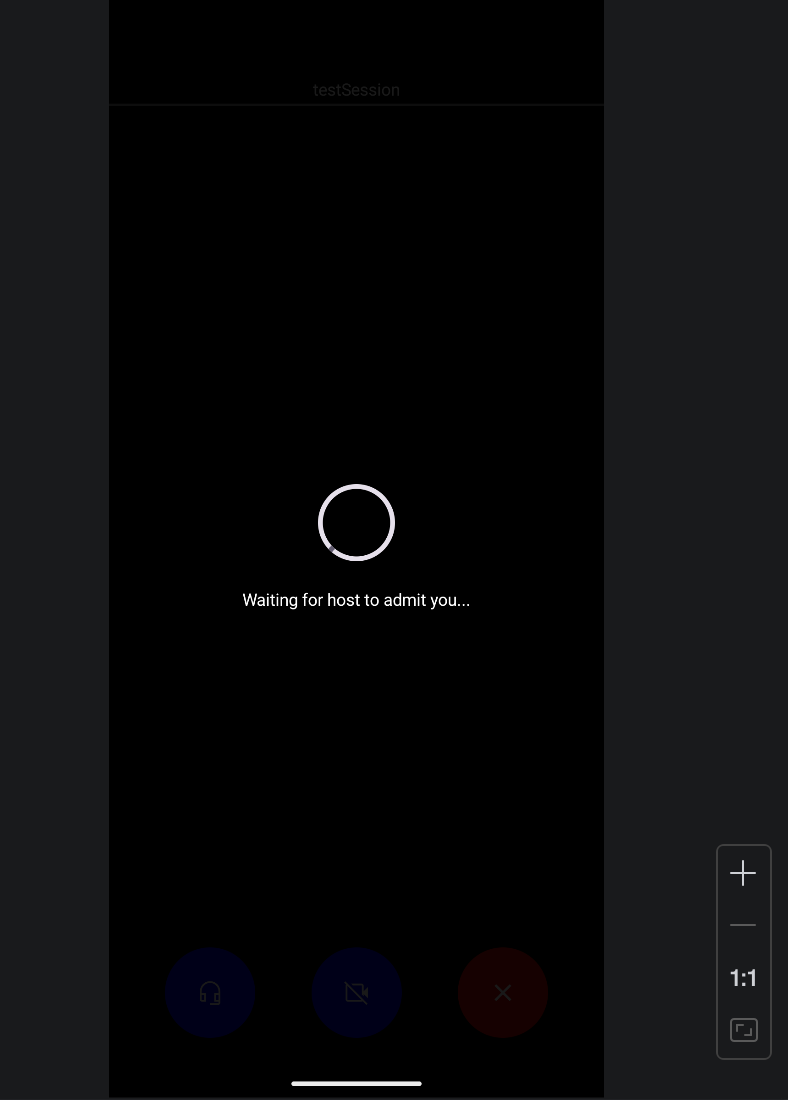
In the activity, collect the UI state and toggle the overlay's visibility based on waitingForHostAdmission:
private lateinit var waitingRoomOverlay: FrameLayout

waitingRoomOverlay = findViewById(R.id.waitingRoomOverlay)

lifecycleScope.launch {
    repeatOnLifecycle(Lifecycle.State.STARTED) {
        zoomSessionViewModel.zoomSessionUIState.collect {
            waitingRoomOverlay.visibility =
                if (it.waitingForHostAdmission) View.VISIBLE else View.GONE
        }
    }
}
Don't wrap this in an inSession check: inSession stays false while the participant is on hold, so the overlay would never appear.
Managing the Waiting Room for the Host
Hosts manage the waiting room through the SDK's ZoomVideoSDKOnHoldHelper, which you can get from ZoomVideoSDK.getInstance().onHoldHelper.
Enabling and disabling Hold
If the session supports Hold (hold was 1 or 2), a host or manager can turn it on or off with enableHold(). The change only applies to people who join afterward; it doesn't admit anyone already waiting. isOnHoldEnabled returns the current state, and isSupportHold tells you whether the session supports Hold at all, which is useful for hiding the switch.
First, refresh the host and hold state when the session is joined, so we know whether to show host controls and what the switch should display:
fun refreshHostAndHoldState() {
    val myself = ZoomVideoSDK.getInstance().session.mySelf
    val onHoldHelper = ZoomVideoSDK.getInstance().onHoldHelper
    _zoomSessionUIState.update {
        it.copy(
            isHost = myself.isHost,
            holdEnabled = onHoldHelper?.isOnHoldEnabled == true
        )
    }
}
Next, add a function that updates the SDK and, on success, our UI state:
fun setHoldEnabled(enabled: Boolean): Int {
    val result = ZoomVideoSDK.getInstance().onHoldHelper?.enableHold(enabled)
        ?: ZoomVideoSDKErrors.Errors_Unknown
    if (result == ZoomVideoSDKErrors.Errors_Success) {
        _zoomSessionUIState.update { it.copy(holdEnabled = enabled) }
    }
    return result
}
The call fails if the user isn't a host or manager, or if the session doesn't support Hold. In the host panel, a switch calls setHoldEnabled and reverts itself if the SDK returns an error. A suppressHoldSwitchListener flag prevents the programmatic revert from re-triggering the listener:
<com.google.android.material.switchmaterial.SwitchMaterial
    android:id="@+id/enableHoldInSessionSwitch"
    android:layout_width="0dp"
    android:layout_height="wrap_content"
    android:layout_weight="1"
    android:text="Enable Hold" />
private var suppressHoldSwitchListener = false

enableHoldInSessionSwitch.setOnCheckedChangeListener { _, isChecked ->
    if (suppressHoldSwitchListener) return@setOnCheckedChangeListener
    val result = zoomSessionViewModel.setHoldEnabled(isChecked)
    if (result != ZoomVideoSDKErrors.Errors_Success) {
        suppressHoldSwitchListener = true
        enableHoldInSessionSwitch.isChecked = !isChecked
        suppressHoldSwitchListener = false
    }
}
We also keep the switch in sync with the state collected from the view model, again guarding the listener, and only show the host options button to the host:
hostOptionsBtn.visibility = if (it.isHost) View.VISIBLE else View.GONE
suppressHoldSwitchListener = true
enableHoldInSessionSwitch.isChecked = it.holdEnabled
suppressHoldSwitchListener = false
Getting notified and displaying users on hold
The host receives onHoldUserJoin when participants are placed on hold, and onHoldUserLeave when they leave the on-hold list, either because they were admitted or because they left. Both callbacks provide a list of ZoomVideoSDKOnHoldUser objects.
Let's keep the on-hold users in the view model, keyed by user ID, and publish them to the UI state as a simple list:
data class OnHoldParticipant(val userId: String, val userName: String)

private val onHoldUsers: LinkedHashMap<String, ZoomVideoSDKOnHoldUser> = LinkedHashMap()

fun refreshOnHoldUsersFromHelper() {
    val users = ZoomVideoSDK.getInstance().onHoldHelper?.onHoldUserList ?: emptyList()
    onHoldUsers.clear()
    users.forEach { user -> onHoldUsers[user.userID] = user }
    publishOnHoldUsers()
}

fun addOnHoldUsers(userList: List<ZoomVideoSDKOnHoldUser?>?) {
    userList?.filterNotNull()?.forEach { user -> onHoldUsers[user.userID] = user }
    publishOnHoldUsers()
}

fun removeOnHoldUsers(userList: List<ZoomVideoSDKOnHoldUser?>?) {
    userList?.filterNotNull()?.forEach { user -> onHoldUsers.remove(user.userID) }
    publishOnHoldUsers()
}

private fun publishOnHoldUsers() {
    _zoomSessionUIState.update {
        it.copy(
            onHoldParticipants = onHoldUsers.values.map { user ->
                OnHoldParticipant(user.userID, user.userName)
            }
        )
    }
}
refreshOnHoldUsersFromHelper() reads the helper's onHoldUserList to catch anyone already waiting, for example right after the host joins or when they open the panel. Then the delegate callbacks keep the list current:
override fun onHoldUserJoin(
    onHoldHelper: ZoomVideoSDKOnHoldHelper?,
    userList: List<ZoomVideoSDKOnHoldUser?>?
) {
    zoomViewModel.addOnHoldUsers(userList)
}

override fun onHoldUserLeave(
    onHoldHelper: ZoomVideoSDKOnHoldHelper?,
    userList: List<ZoomVideoSDKOnHoldUser?>?
) {
    zoomViewModel.removeOnHoldUsers(userList)
}
Don't forget to call refreshHostAndHoldState() and refreshOnHoldUsersFromHelper() at the end of onSessionJoin().
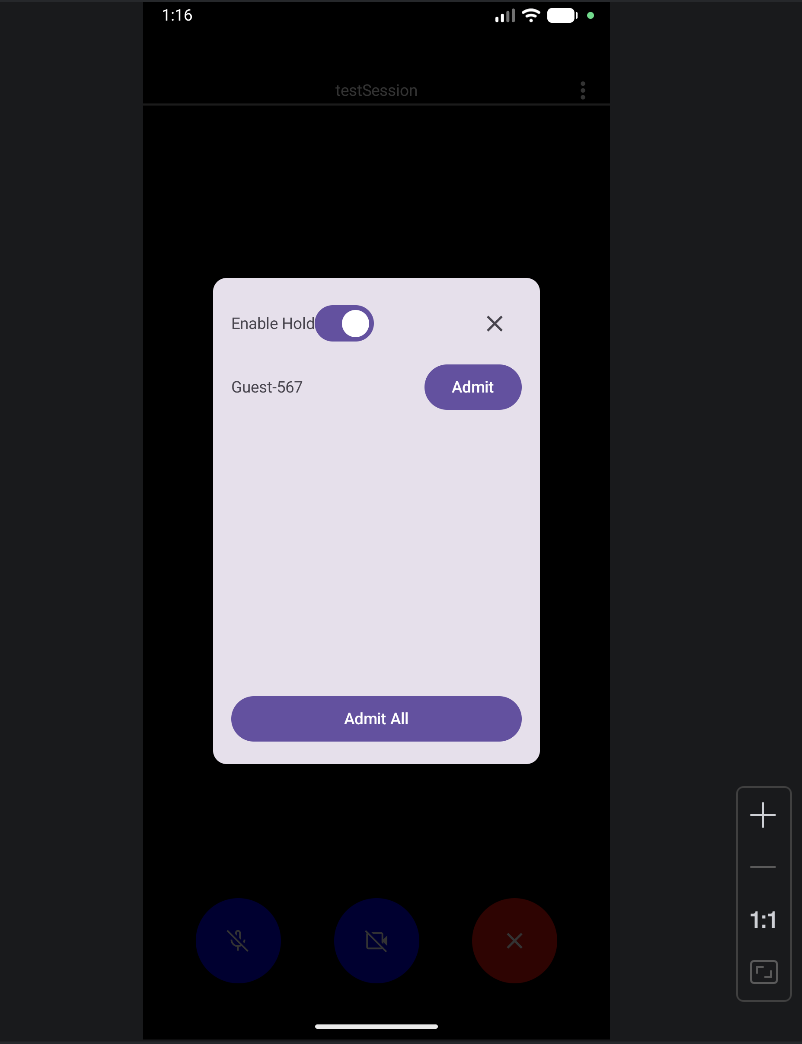
Render one row per waiting user, or an empty message if nobody is waiting:
private fun renderOnHoldList(onHoldParticipants: List<OnHoldParticipant>) {
    onHoldListContainer.removeAllViews()
    if (onHoldParticipants.isEmpty()) {
        onHoldListContainer.addView(createUserRow("No users waiting"))
        return
    }
    onHoldParticipants.forEach { user ->
        onHoldListContainer.addView(
            createUserRow(user.userName, "Admit") {
                zoomSessionViewModel.admitOnHoldUser(user.userId)
            }
        )
    }
}
Here, createUserRow is a small helper that builds a row with a name label and an optional action button. Use whatever row layout fits your app.
The host opens the panel from a menu, and we re-render whenever the UI state changes while the panel is visible so new arrivals appear live:
hostOptionsBtn.setOnClickListener {
    val menu = PopupMenu(this, hostOptionsBtn)
    menu.menu.add("Admit Participants")
    menu.setOnMenuItemClickListener {
        zoomSessionViewModel.refreshOnHoldUsersFromHelper()
        renderOnHoldList(zoomSessionViewModel.getState().onHoldParticipants)
        hostAdmitPanel.visibility = View.VISIBLE
        true
    }
    menu.show()
}

findViewById<MaterialButton>(R.id.closeAdmitPanelBtn).setOnClickListener {
    hostAdmitPanel.visibility = View.GONE
}

// Inside the UI state collector:
if (hostAdmitPanel.visibility == View.VISIBLE) renderOnHoldList(it.onHoldParticipants)
Admitting users
Admitting a user takes the ZoomVideoSDKOnHoldUser object and passes it to the helper's admit() method. To let everyone in at once, call admitAll(). On success, we remove the user from the local list and republish so the UI updates immediately:
fun admitOnHoldUser(userId: String): Int {
    val user = onHoldUsers[userId] ?: return ZoomVideoSDKErrors.Errors_Unknown
    val result = ZoomVideoSDK.getInstance().onHoldHelper?.admit(user)
        ?: ZoomVideoSDKErrors.Errors_Unknown
    if (result == ZoomVideoSDKErrors.Errors_Success) {
        onHoldUsers.remove(userId)
        publishOnHoldUsers()
    }
    return result
}

fun admitAllOnHoldUsers(): Int {
    val result = ZoomVideoSDK.getInstance().onHoldHelper?.admitAll()
        ?: ZoomVideoSDKErrors.Errors_Unknown
    if (result == ZoomVideoSDKErrors.Errors_Success) {
        onHoldUsers.clear()
        publishOnHoldUsers()
    }
    return result
}
Hook up the "Admit All" button:
findViewById<MaterialButton>(R.id.admitAllBtn).setOnClickListener {
    zoomSessionViewModel.admitAllOnHoldUsers()
}
Once a user is admitted, their device receives onSessionJoin(), the waiting overlay is hidden, and they join the session.
To test, run the app on two devices. Join from the first as the host with Hold enabled, then join from the second and confirm it shows the waiting screen. On the host, open Admit Participants, see the second user listed, and tap Admit.
Conclusion
That concludes the walkthrough of implementing a waiting room on Android with the Video SDK Hold feature. We configured the JWT, showed participants a waiting overlay when onHoldJoined() fires, and gave the host controls to toggle Hold, see who is waiting, and admit users individually or all at once.
To dive deeper, check out Video SDK Android sessions documentation. For questions and discussion with the community and Zoom engineers visit the Zoom Developer Forum .