How to use the Meeting SDK in an Angular app
In this guide, we'll walk through integrating the Meeting SDK for web into an Angular application.
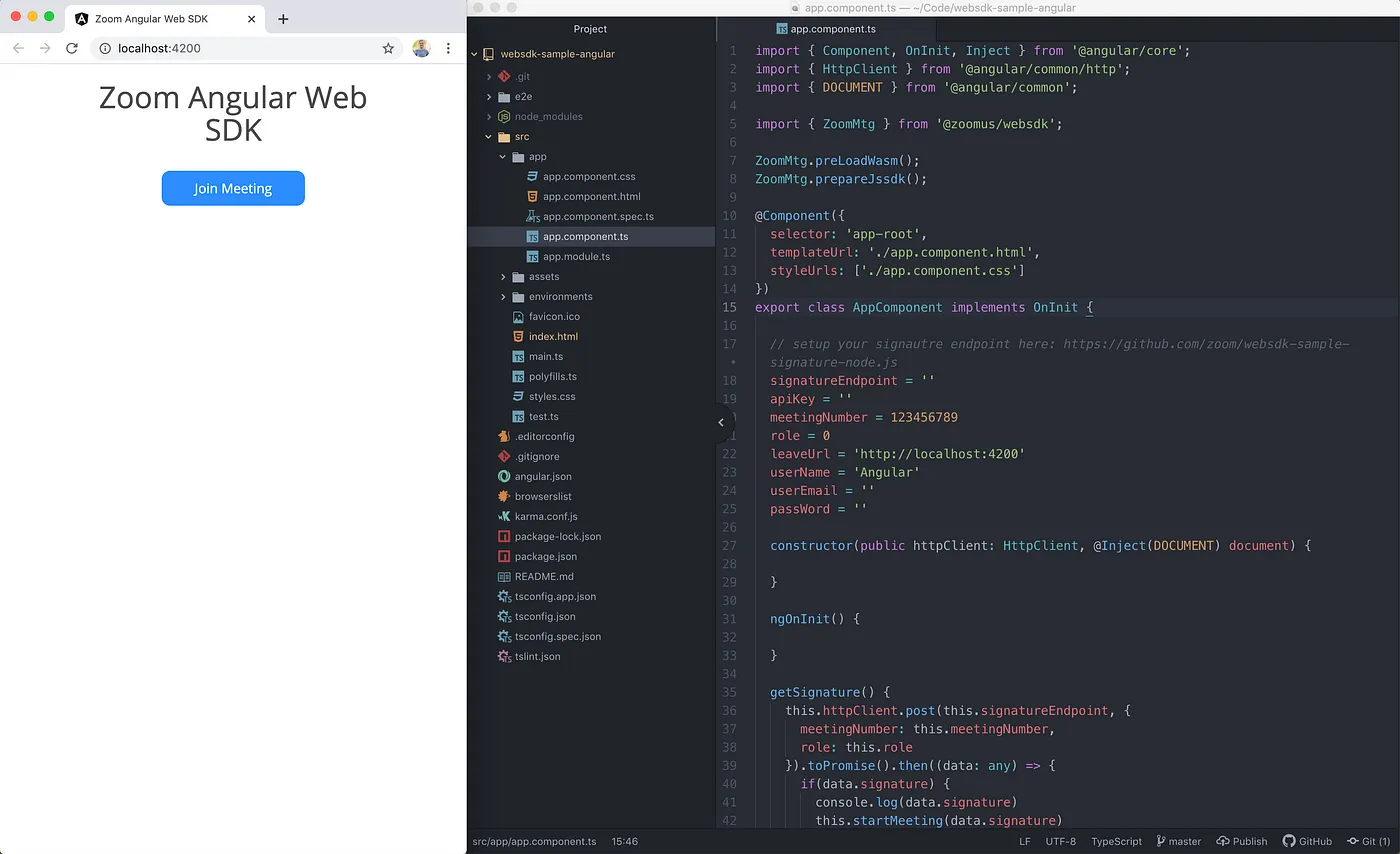
Step 1.
To embed Zoom Meetings and Webinars into an Angular project, install the Web Meeting SDK via NPM:
npm install @zoom/meetingsdk --save
Step 2.
Import the Web Meeting SDK at the top of the desired component file:
import { ZoomMtg } from "@zoom/meetingsdk";
ZoomMtg.preLoadWasm();
ZoomMtg.prepareJssdk();
Step 3.
Define the Meeting / Webinar settings and Web Meeting SDK credentials variables:
// setup your signautre endpoint here: https://github.com/zoom/websdk-sample-signature-node.js
signatureEndpoint = "";
sdkKey = "";
meetingNumber = "";
role = 0;
leaveUrl = "http://localhost:4200";
userName = "Angular";
userEmail = "";
passWord = "";
Step 4.
Generate the Web Meeting SDK Signature (API request to Signature Server):
getSignature() {
    this.httpClient.post(this.signatureEndpoint, {
        meetingNumber: this.meetingNumber,
        role: this.role
    }).toPromise().then((data: any) => {
        if(data.signature) {
            console.log(data.signature)
            this.startMeeting(data.signature)
        } else {
            console.log(data)
        }
    }).catch((error) => {
        console.log(error)
    })
}
Step 5.
Init and Join the Zoom Meeting / Webinar, pass in the Web Meeting SDK Signature:
startMeeting(signature) {
    ZoomMtg.init({
        leaveUrl: this.leaveUrl,
        success: (success) => {
            console.log(success)
            ZoomMtg.join({
            signature: signature,
            meetingNumber: this.meetingNumber,
            userName: this.userName,
            sdkKey: this.sdkKey,
            userEmail: this.userEmail,
            passWord: this.passWord,
            success: (success) => {
                console.log(success)
            },
            error: (error) => {
                console.log(error)
            }
            })
        },
        error: (error) => {
            console.log(error)
        }
    })
}
Step 6.
Serve the project:
ng serve --open
Considerations
- By default, the Web Meeting SDK takes over the whole web page once imported. Checkout the sample app for an example of hiding and showing the Web Meeting SDK when desired. This will be improved in a future Web Meeting SDK release. Stay up to date here.
- The Web Meeting SDK ships with default global styles that may conflict with existing styles. To avoid styles being overwritten or conflicted, use an iFrame, host the Web Meeting SDK on a separate path or sub domain. Navigate to the location of the Web Meeting SDK for the Meeting / Webinar. Then after the meeting / webinar, navigate back to the main website using the leaveUrl. This will be improved in a future Web Meeting SDK release. Stay up to date here.