Collaborate together with Video SDK whiteboards
Zoom Video SDK for Web includes a built-in whiteboard client that you can wire into a session with a small amount of UI logic. This sample focuses on one goal: keep whiteboard state in sync for presenters and viewers.
If you want to go straight to the code, you can check out the whiteboard demo app on GitHub.
The whiteboard feature follows these steps:
- Add a container for the whiteboard in your webpage
- Start a Video SDK session
- Initialize the whiteboard client
- Listen for whiteboard events from peers
- Start/Stop the whiteboard as needed
1. Add the whiteboard container in HTML
The SDK requires a container to render the whiteboard. We'll keep it hidden by default and show it when the whiteboard is active:
<div id="whiteboard-container" style="display: none;"></div>
<video-player-container></video-player-container>
2. Initialize the whiteboard client after join
After joining a session you can create a whiteboard client with client.getWhiteboardClient():
let whiteboardClient = client.getWhiteboardClient();
We'll use this whiteboard client to check for device support before initialisation:
if (!whiteboardClient.isWhiteboardEnabled()) {
    console.warn("Whiteboard is not supported on this device");
    return;
}
3. Sync viewers with peer-whiteboard-state-change
The SDK triggers the peer-whiteboard-state-change event when a participant starts or stops presenting their whiteboard. We can listen for this event and update the UI accordingly:
client.on("peer-whiteboard-state-change", async (payload) => {
    const { action, userId } = payload;
    if (action === "Start") {
        whiteboardContainer.style.display = "block";
        await whiteboardClient.startWhiteboardView(whiteboardContainer, userId);
    } else if (action === "Stop") {
        await whiteboardClient.stopWhiteboardView();
        whiteboardContainer.style.display = "none";
    }
});
When we receive the Start action from a peer, we call startWhiteboardView to render the whiteboard in the UI. Similarly, when we receive the Stop action, we call stopWhiteboardView to remove the whiteboard from the UI.
4. Render whiteboard for users joining after sharing
For participants that join after a whiteboard is already active, we can run this check to render the whiteboard in the UI:
const presenter = whiteboardClient.getWhiteboardPresenter();
if (presenter) {
    whiteboardContainer.style.display = "block";
    whiteboardClient.startWhiteboardView(whiteboardContainer, presenter.userId);
}
5. Toggle presenter mode from the local client
Use a toggleWhiteboard() function to switch whiteboard presentation on and off:
const toggleWhiteboard = async () => {
    const isPresenting =
        whiteboardClient.getWhiteboardPresenter()?.userId ===
        client.getCurrentUserInfo().userId;
    if (isPresenting) {
        await whiteboardClient.stopWhiteboardScreen();
        whiteboardContainer.style.display = "none";
    } else {
        await whiteboardClient.startWhiteboardScreen(whiteboardContainer);
        whiteboardContainer.style.display = "block";
    }
};
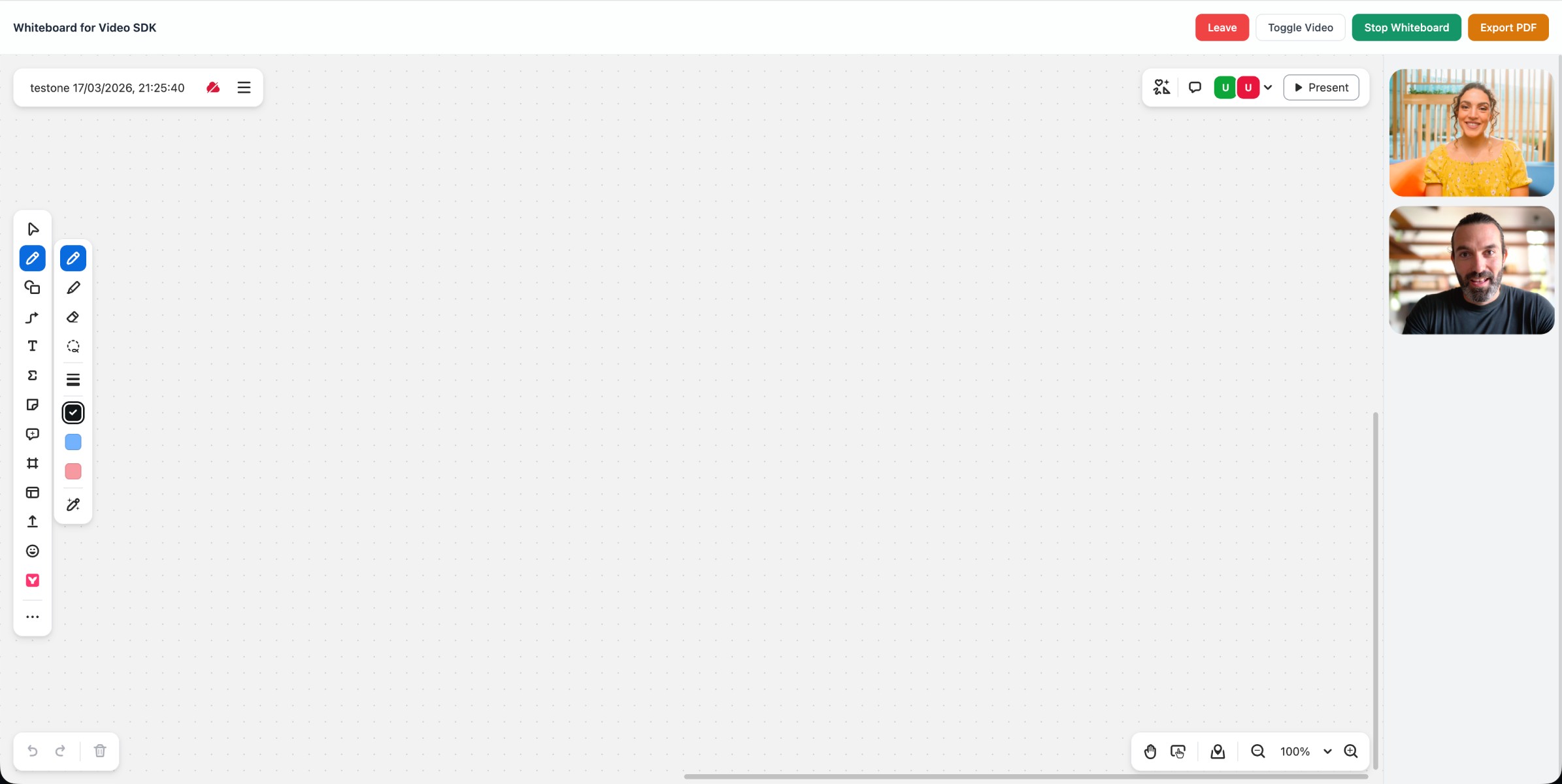
With just a few lines of code, you've added whiteboard support to your Video SDK sessions. Check out the sample app for more features like PDF export and custom layout for active whiteboard. You can read more in the Video SDK whiteboard documentation.