# Collaborate together with Video SDK whiteboards
Zoom Video SDK for Web includes a built-in whiteboard client that you can wire into a session with a small amount of UI logic. This sample focuses on one goal: keep whiteboard state in sync for presenters and viewers.
If you want to go straight to the code, you can check out the whiteboard demo app on [GitHub](https://github.com/zoom/videosdk-web-whiteboard).
The whiteboard feature follows these steps:
1. Add a container for the whiteboard in your webpage
2. Start a Video SDK session
3. Initialize the whiteboard client
4. Listen for whiteboard events from peers
5. Start/Stop the whiteboard as needed
### 1. Add the whiteboard container in HTML
The SDK requires a container to render the whiteboard. We'll keep it hidden by default and show it when the whiteboard is active:
```html
```
### 2. Initialize the whiteboard client after join
After joining a session you can create a whiteboard client with `client.getWhiteboardClient()`:
```ts
let whiteboardClient = client.getWhiteboardClient();
```
We'll use this whiteboard client to check for device support before initialisation:
```ts
if (!whiteboardClient.isWhiteboardEnabled()) {
console.warn("Whiteboard is not supported on this device");
return;
}
```
### 3. Sync viewers with `peer-whiteboard-state-change`
The SDK triggers the `peer-whiteboard-state-change` event when a participant starts or stops presenting their whiteboard. We can listen for this event and update the UI accordingly:
```ts
client.on("peer-whiteboard-state-change", async (payload) => {
const { action, userId } = payload;
if (action === "Start") {
whiteboardContainer.style.display = "block";
await whiteboardClient.startWhiteboardView(whiteboardContainer, userId);
} else if (action === "Stop") {
await whiteboardClient.stopWhiteboardView();
whiteboardContainer.style.display = "none";
}
});
```
When we receive the `Start` action from a peer, we call `startWhiteboardView` to render the whiteboard in the UI. Similarly, when we receive the `Stop` action, we call `stopWhiteboardView` to remove the whiteboard from the UI.
### 4. Render whiteboard for users joining after sharing
For participants that join after a whiteboard is already active, we can run this check to render the whiteboard in the UI:
```ts
const presenter = whiteboardClient.getWhiteboardPresenter();
if (presenter) {
whiteboardContainer.style.display = "block";
whiteboardClient.startWhiteboardView(whiteboardContainer, presenter.userId);
}
```
### 5. Toggle presenter mode from the local client
Use a `toggleWhiteboard()` function to switch whiteboard presentation on and off:
```ts
const toggleWhiteboard = async () => {
const isPresenting =
whiteboardClient.getWhiteboardPresenter()?.userId ===
client.getCurrentUserInfo().userId;
if (isPresenting) {
await whiteboardClient.stopWhiteboardScreen();
whiteboardContainer.style.display = "none";
} else {
await whiteboardClient.startWhiteboardScreen(whiteboardContainer);
whiteboardContainer.style.display = "block";
}
};
```
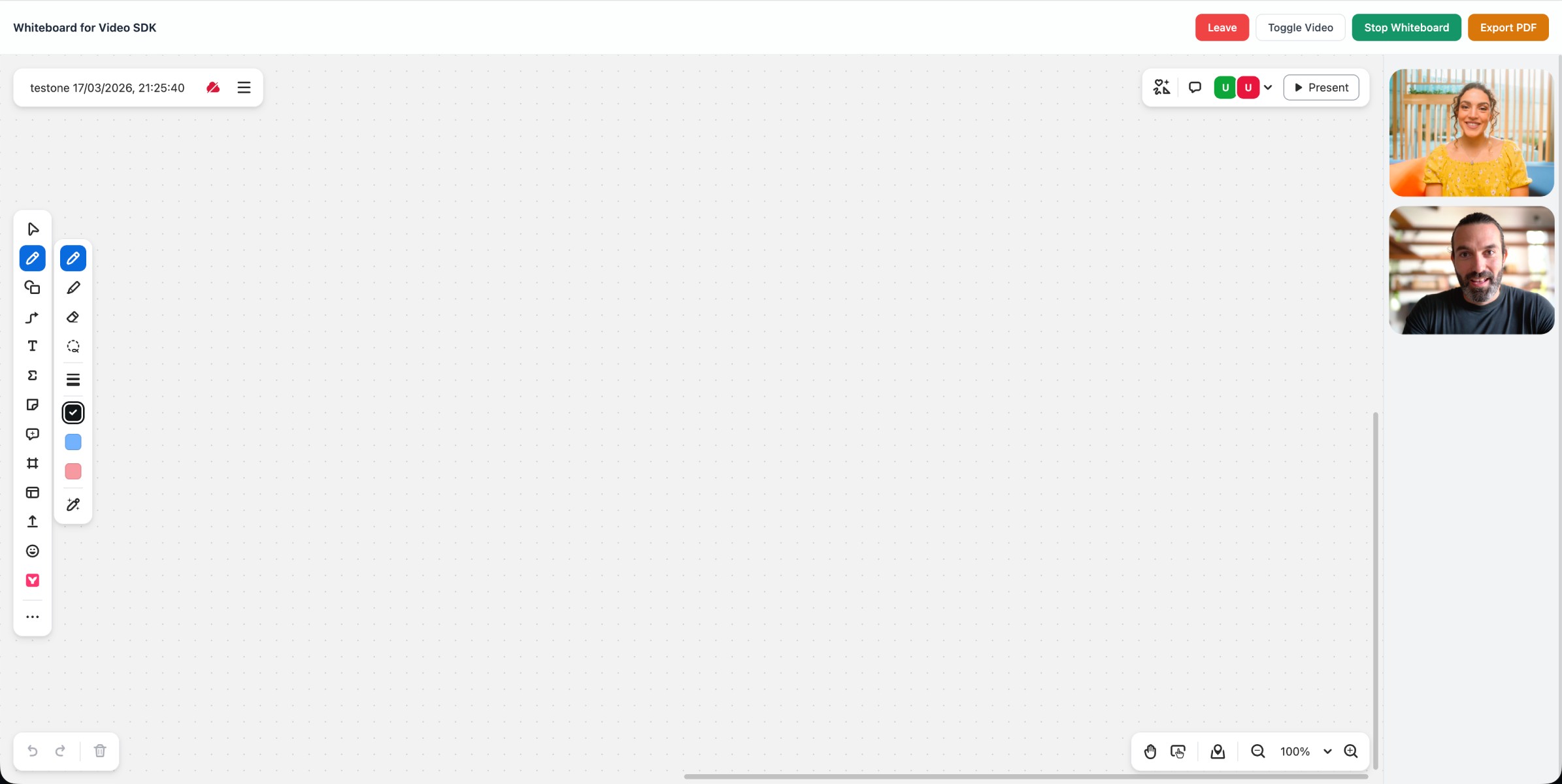
With just a few lines of code, you've added whiteboard support to your Video SDK sessions. Check out the [sample app](https://github.com/zoom/videosdk-web-whiteboard) for more features like PDF export and custom layout for active whiteboard. You can read more in the Video SDK [whiteboard documentation](/docs/video-sdk/web/whiteboard/).