

Zoom Smart Embed is an embeddable iFrame with built-in UI that allows developers to integrate a soft phone into their application with access to Contact Center agent features. Set up is fast, with minimal code involved, and users can navigate the customer experience with features such as:
- Outbound and inbound engagements (voice, video, chat)
- SMS messaging
- Transcriptions displayed during engagements
- AI assistance during engagements
- The 'wrap-up' feature at the end of engagement for smart summaries
This guide will walk you through Smart Embed portal set up, quick code integration, and product feature highlights.
Zoom portal set up
For this section, make sure you have:
- An account with a Contact Center license
- Admin access
- The Vanity URL you'll use to host your Smart Embed integrated application*
- An assigned phone number, assigned via the Number Management menu, to use as a caller ID (to assign a phone number, you need a global phone number SKU added to your account)
To get started using Zoom Contact Center Smart Embed, navigate to your Zoom account homepage (zoom.us/myhome). From there, navigate to Admin → Contact Center Management on the left-side menu. Next, go to "integrations" and select "add integrations". Here, you'll create your integration by copying in your Vanity URL (make sure to remove the https:// here, as it's already included). Select the options you want and click "save". With this, you've created an integration that will bridge the connection between Smart Embed and your domain.
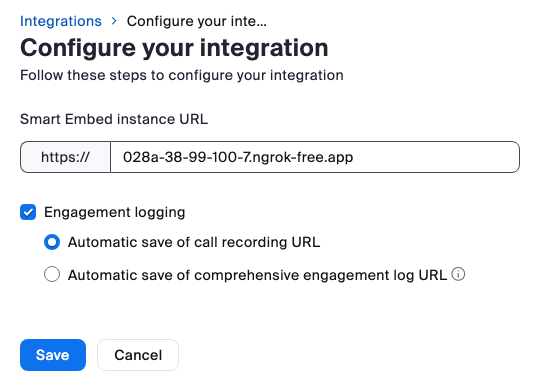
Next, navigate to Contact Center Management → Users, and select the user who will be logging in for use of Smart Embed (log in is required once the UI has launched within your app and before soft phone access is granted). For example, I will be logging in with my test account, so I will add my created integration to that user, under Profile → General → Client Integration. Note, only one integration can be added per user, but multiple users can have access to the same integration. Now, the specified user can log in to user Smart Embed with the iFrame.

With these settings configured, we're now ready to dive into our codebase and embed our iFrame.
Codebase set up
Within your codebase, you'll copy the iFrame code snippet, provided in our documentation, into the component where you want to make use of Smart Embed.
<iframe
    src="https://zoom.us/cci/callbar/crm/?origin=https://YOUR_DOMAIN"
    sandbox="allow-forms allow-popups allow-popups-to-escape-sandbox allow-scripts allow-same-origin allow-downloads"
    allow=";autoplay;microphone;camera;display-capture;midi;encrypted-media;clipboard-write;"
    id="zoom-embeddable-phone-iframe"
></iframe>
At the src attribute, you'll replace add in your vanity url for the origin parameter. For example, when using ngrok to tunnel your local server (for testing), your src attribute would look something like this:
<iframe
    src="https://zoom.us/cci/callbar/crm/?origin=https://18f4-64-187-131-142.ngrok-free.app"
></iframe>
Additionally, you want to make sure that the copied Vanity URL within your codebase completely matches the Vanity URL added to your assigned integration. If there is any mismatch, you'll run into an error when Smart Embed attempts to load on your domain.
With just those six lines of code, you're ready to use Smart Embed within your application.
Smart Embed APIs and events
Zoom Contact Center Smart Embed includes a set of APIs and events that let you extend the built-in softphone and tie customer interactions directly into your application logic. This means you're not limited to the out-of-the-box UI—you can trigger workflows, update your interface, or log data in real time based on how agents and customers engage.
Here's a quick example showing how an application can respond to call events:
useEffect(() => {
    console.log(voiceAuthorized, 'voiceAuth')
    const messageHandler = (event) => {
      const { type, data } = event.data || {};
      if (type === "zcc-call-connected" || type === "zcc-incomingphone-request") {
        console.log("Call Connected:", data);
        setVoicePrompt(true);
        startRecording();
      } else if (type === "zcc-call-ended") {
        console.log("Call Ended:", data);
      }
    }
});
The above example are of events being used within a voice recording application. Wrapped within a function that fires when the window receives a message event (window.addEventListener("message", messageHandler)), the created function messageHandler() checks to see if a call has been answered or if the soft phone is receiving an inbound call (zcc-call-connected or zcc-incomingphone-request) . It uses that information within a conditional to set relevant state and send messages to the console. Similarly, it can track when calls end, enabling you to build downstream workflows like saving logs, updating CRM records, or generating summaries.
This is just one example of how Smart Embed events can help you integrate contact center activity into your own systems. Events are available across voice and video channels, with SMS events supported in Version 3. To see the full list and explore additional examples, visit our documentation.
Conclusion: Embedding contact center value
Smart Embed gives you access to the Zoom Contact Center agent experience via lightweight configuration and a few lines of code. This integration gives you immediate access to voice, video, SMS, AI-powered assistance, and post-engagement wrap-ups, all with pre-built UI. This means faster deployment, less custom code to maintain, and more opportunities to tailor customer and agent workflows to your business needs. Be sure to explore our documentation for more ways to create customer-friendly platform experience using Zoom Contact Center. Happy building!