

As developers integrating Zoom Virtual Agent (ZVA) with external APIs through Marketplace apps, protecting sensitive customer data is paramount. If you're building a customer support bot, an e-commerce integration or anything else customer-related, you'll inevitably encounter Personally Identifiable Information (PII) like names, email addresses, phone numbers, or billing details flowing through your API responses.
The challenge is, you need this data to power your integration, but you can't risk exposing it unnecessarily to ZVA or logging it where it doesn't belong. Fortunately, there are several options you can use to filter, mask, and control PII data right at the integration layer.
In this guide, I'll walk you through four supported approaches to hide PII information when integrating ZVA with Marketplace apps and custom tools, along with best practices to ensure your implementation is both secure and maintainable.
When to filter PII: API vs. integration layer
Before diving into integration-layer techniques, it's important to understand where PII filtering should happen:
-
Filter at the API source when possible:
- If you control the backend API, the most secure approach is to filter PII directly in your API response before it reaches Zoom. This ensures sensitive data never leaves your infrastructure.
-
Filter at the integration layer when:
- You're consuming third-party APIs you don't control.
- The API cannot be modified to support filtered responses.
- You need different data visibility for different use cases using the same API.
- You want centralized filtering logic without modifying multiple backend services.
The methods below focus on integration-layer filtering—essential when you can't control the API source.
Method 1: Output mapping at action level
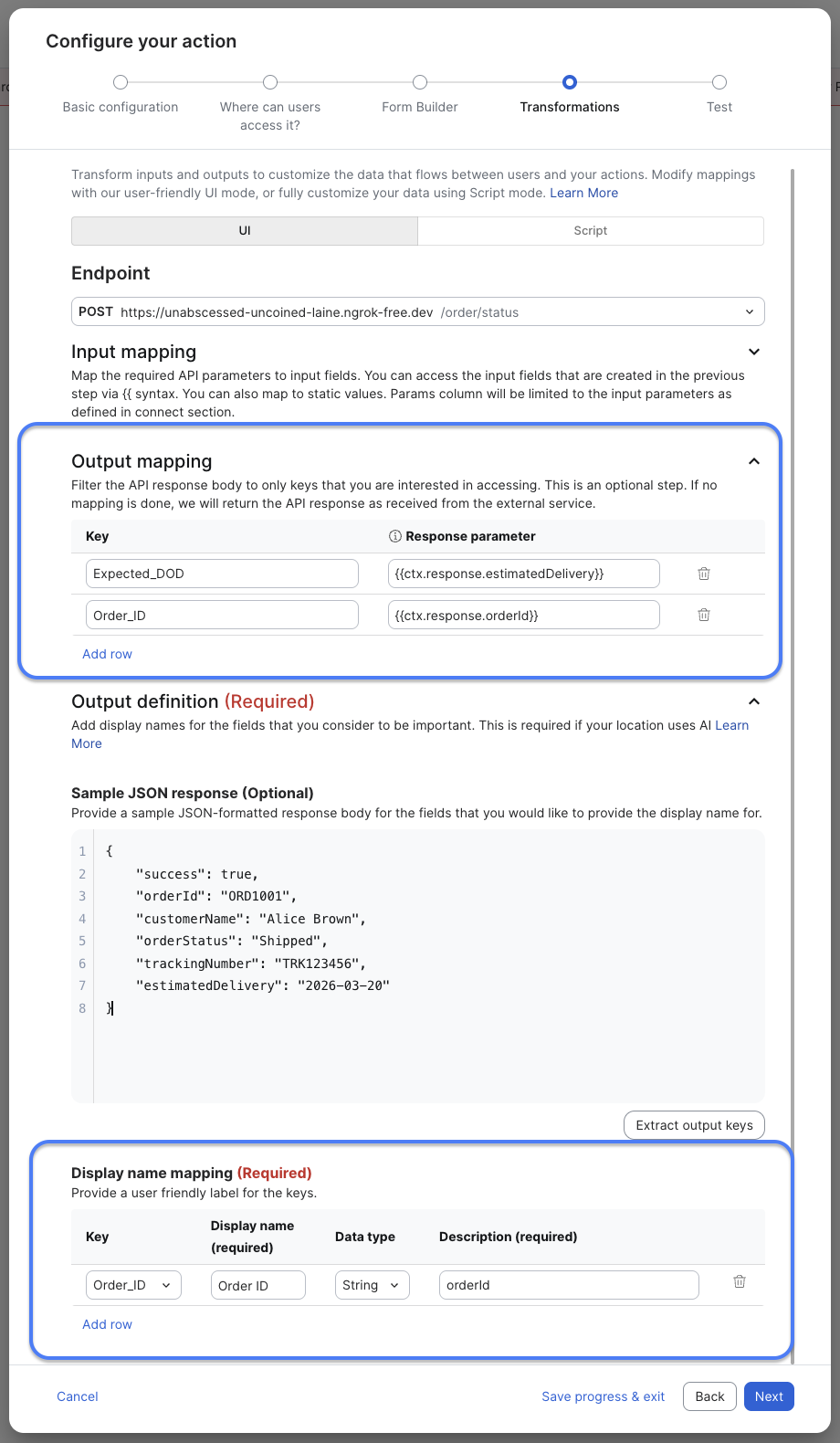
The simplest and most straightforward approach to filtering PII is using output mapping. This built-in feature of Marketplace apps lets you cherry-pick exactly which fields from your API response should be visible to ZVA.
Output mapping serves two primary purposes:
- Filtering fields: Control which response parameters are returned to ZVA by selectively mapping only non-sensitive fields.
- Renaming keys: Change field names in the response for better clarity or security.
To implement output mapping:
- Navigate to the action configuration in your Marketplace app.
- In the Output mapping section, add only the fields you want to expose.
- Any fields not mapped in this section will be filtered out from the response.
- Use the Display name mapping to provide user-friendly labels for the mapped fields.
Method 2: Blocking parameters at connector endpoint level
When you're working with endpoints that serve multiple actions with different security requirements, endpoint-level parameter blocking gives you fine-grained control over data visibility.
You can control parameter visibility at two levels, providing flexibility for reusing endpoints:
1. Connect endpoint level
Block sensitive parameters directly at the connector endpoint, preventing them from being available to any action using that endpoint.
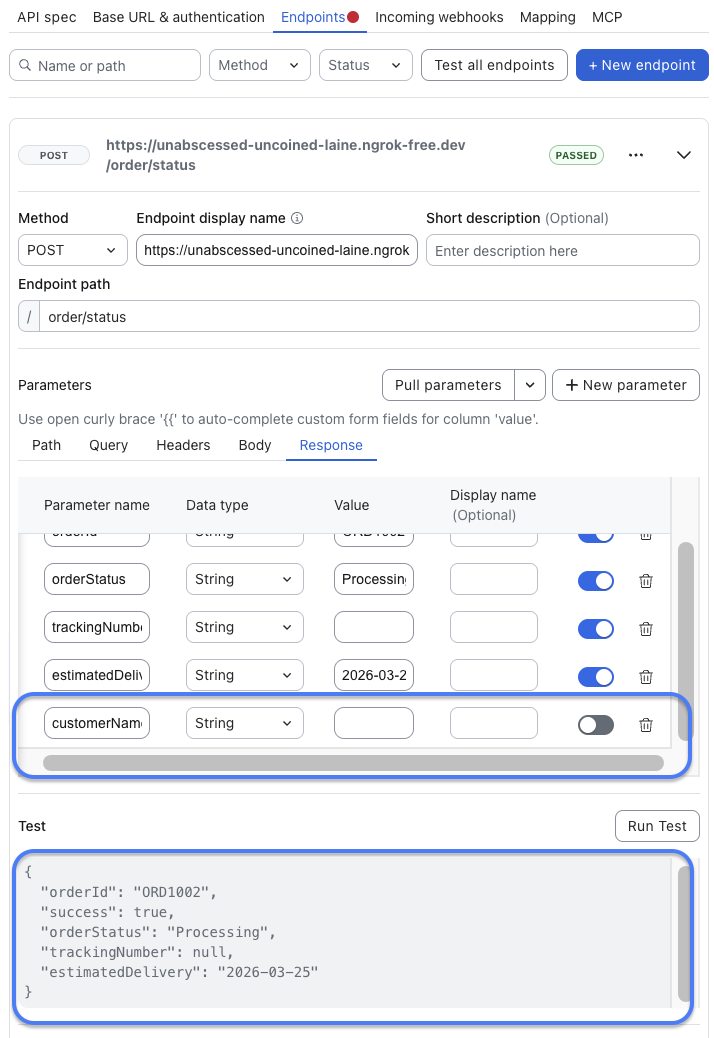
To implement endpoint output mapping:
- Navigate to Connect > Endpoint configuration in your Marketplace app.
- In the Parameters > Response section, add only the fields you want to expose, or explicitly disable PII fields.
- Use the "Pull parameters" option to automatically extract available parameters from the API response, then selectively disable sensitive fields by toggling them off.
- Any fields not included in this mapping will be automatically filtered out from the response.
2. Action output mapping level
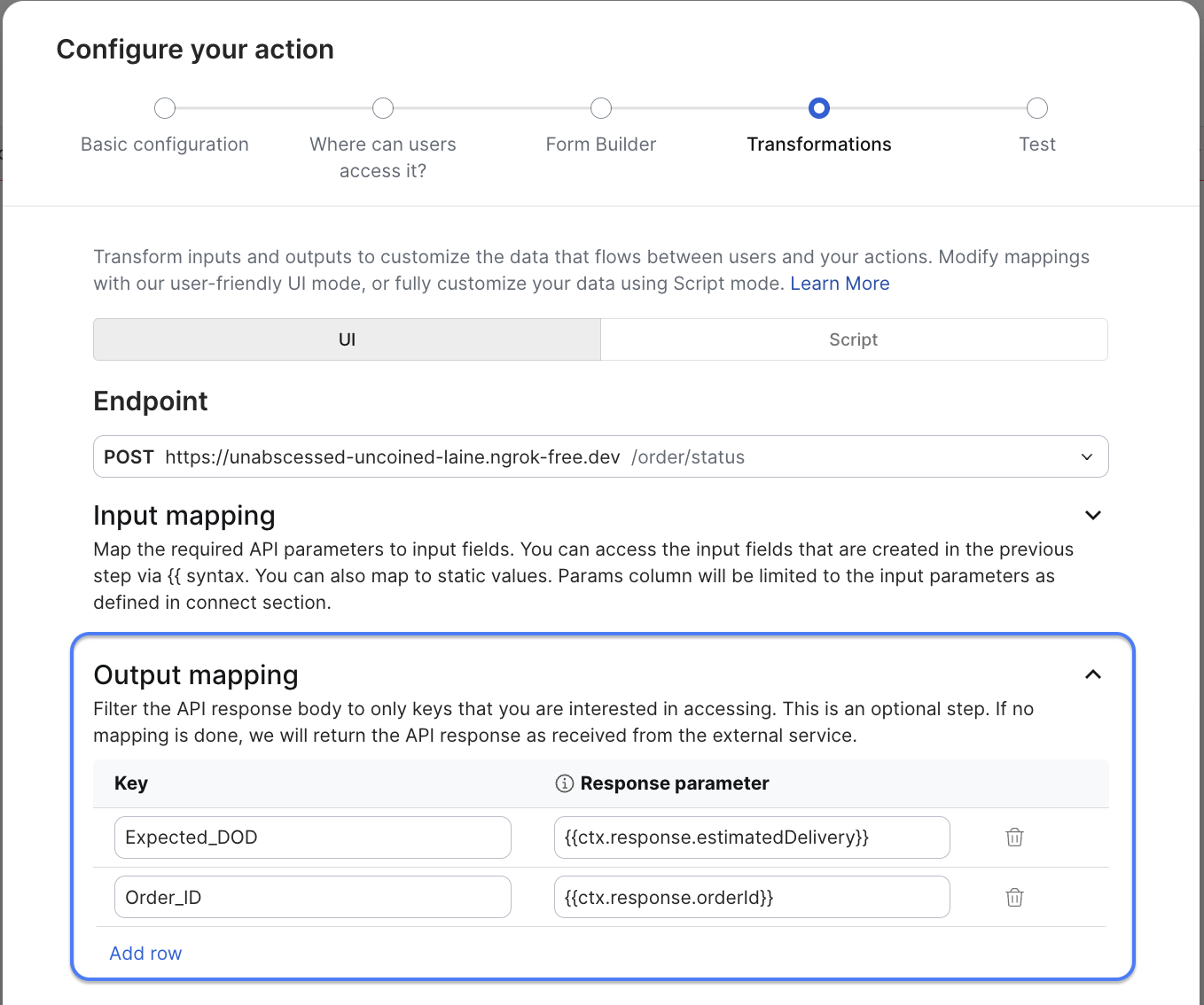
Allow parameters at the endpoint but restrict them at the individual action level. This is useful when the same endpoint is used for different actions with varying security requirements.
To implement output mapping:
- Navigate to the action configuration in your Marketplace app.
- In the Output mapping section, add only the fields you want to expose.
- Any fields not mapped in this section will be filtered out from the response.
- Use the Display name mapping to provide user-friendly labels for the mapped fields.
Method 3: Script-based transformation
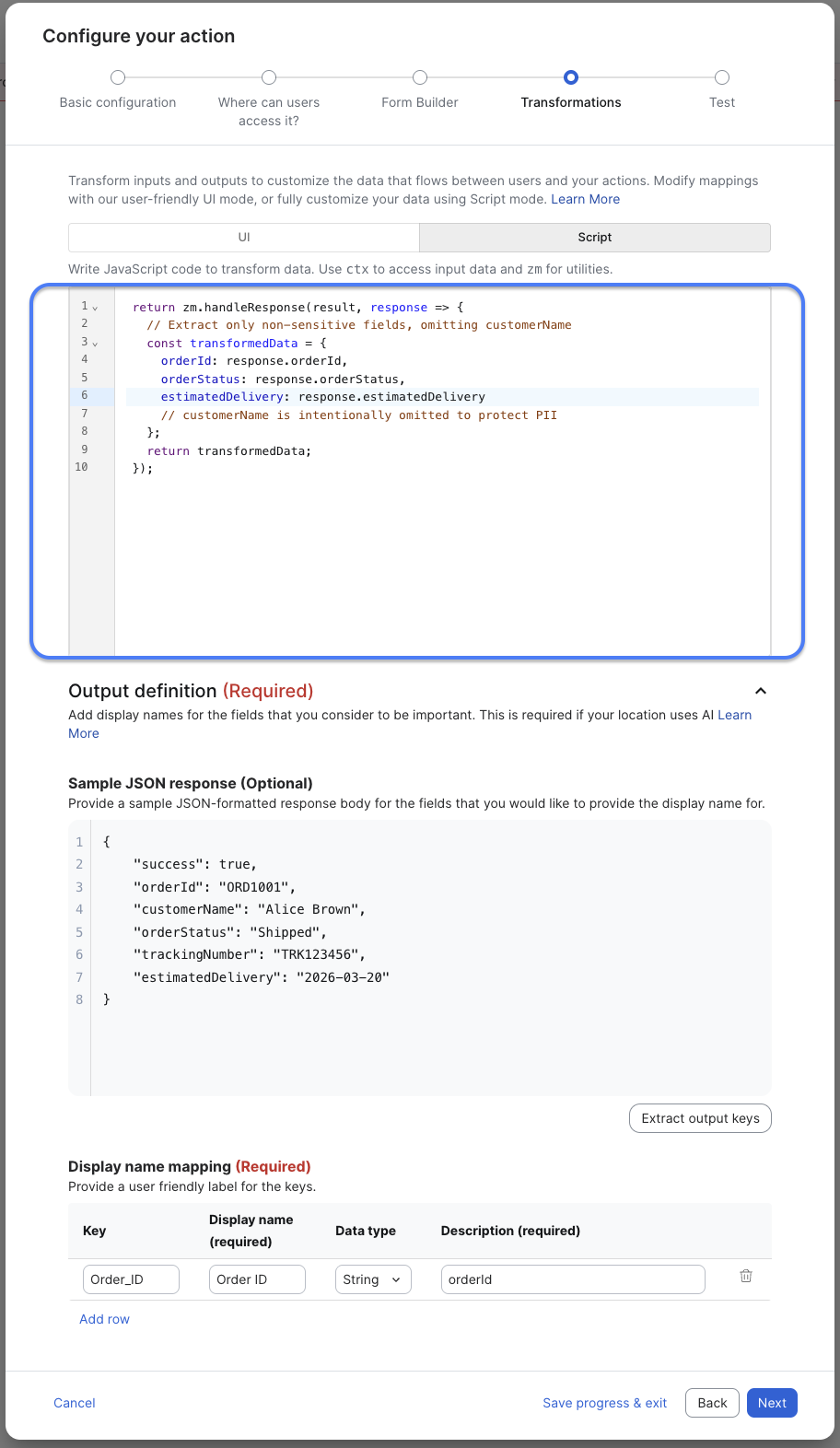
For scenarios requiring complex logic—like conditional filtering, data transformation, or calling multiple APIs—script mode provides maximum flexibility.
For more complex filtering scenarios, use JavaScript-based script mode instead of UI mode:
Method 4: Custom JavaScript tools in ZVA
Beyond Marketplace apps, Zoom Virtual Agent also supports custom tools written directly in JavaScript. This approach gives you complete programmatic control over PII filtering within the tool itself.
When to use custom JavaScript tools:
- You need maximum flexibility and custom logic.
- You want to keep filtering logic within ZVA rather than in a Marketplace app.
- You're building internal tools that don't require Marketplace distribution.
Implementation approach:
Within your custom JavaScript tool code, you can:
- Parse API responses and filter out sensitive fields programmatically.
- Apply conditional masking based on user roles or context.
- Transform data structures before returning to ZVA.
- Combine multiple API calls and filter the aggregated response.
This method is particularly useful for organizations building internal integrations that don't need the structure of a full Marketplace app.
Suggested practices for PII protection
Regardless of which method you choose, following these suggested practices will help you avoid common pitfalls:
- Avoid spaces in field names: They automatically convert to underscores, which may cause confusion.
- Select correct data types: Ensure field data types match the API response (String, Number, Boolean, etc.).
- Add fields to both response parameters and display mapping: For fields to function properly in ZVA, they must be defined in both sections.
- Test thoroughly: After configuration changes, save and redeploy to verify that sensitive fields are properly filtered.
The key is to filter data as close to the source as possible and verify your configuration thoroughly. Don't rely on display-level hiding alone—implement proper filtering at the API response layer to ensure PII is never exposed where it shouldn't be.
Start with output mapping for straightforward use cases, and graduate to script mode when you need more control.